
Revit Worksharing Basics: Central Models, Worksets and Syncing
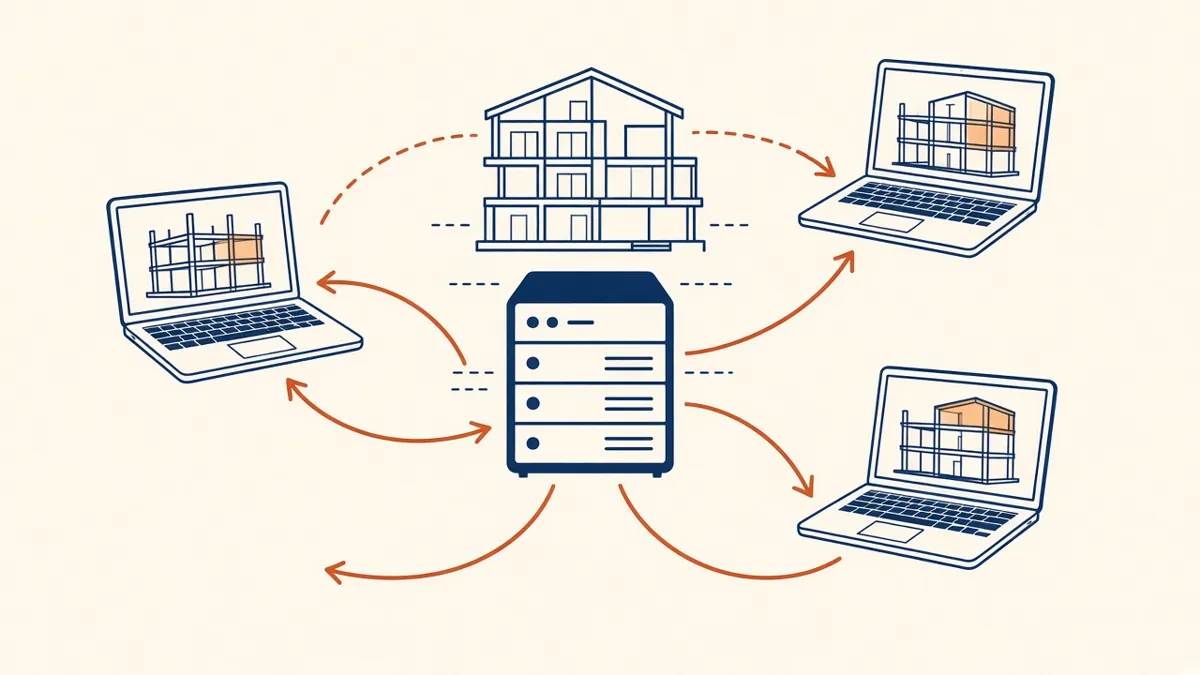
Two people editing the same model at once sounds risky. With worksharing set up properly, it's how most Revit teams work every day.
Worksharing lets several people work on the same Revit model at once. Used well, it speeds production up. Used carelessly, it leads to lost work, permission conflicts and corrupted files. Here's how it works and how to keep it running smoothly.
Central and local models
When a model is workshared, there's one central model and each user works in their own local copy. Users make changes locally, then use Synchronize with Central to send their changes and receive everyone else's. The central model is the single source of truth.
Central models can live on a network server, on Revit Server, or in the cloud through Autodesk's cloud worksharing, which is part of Autodesk Construction Cloud with BIM Collaborate Pro. Cloud worksharing is useful when team members work in different offices or countries.
Worksets
Worksets divide the model into logical groups, such as shell and core, interiors, furniture or linked models. They help in two ways:
- They control what's loaded, so users can open only the parts they need
- They help organise ownership and visibility
Element borrowing
Revit grants editing rights at the element level. When you edit an element, you borrow it. Others can't change it until you sync and release it. If someone needs an element you've borrowed, they can send an editing request.
This is why syncing regularly matters. Holding elements for hours blocks other people's work.
Good worksharing habits
- Always create a new local copy when you start work, rather than reusing an old one
- Sync little and often, such as every 30 to 60 minutes and before breaks
- Relinquish elements you no longer need
- Close Revit properly at the end of the day, syncing and relinquishing everything
- Don't open the central model directly unless you're the model manager doing maintenance
- Check the active workset before placing new elements
Model maintenance
Someone should own model health. Regular tasks include:
- Reviewing and resolving warnings
- Purging unused families and views
- Auditing the file
- Compacting the central model when appropriate
- Archiving dated copies at key milestones
Agree when maintenance happens, so nobody is working in the model while it's being audited or compacted.
Linked models versus one big model
Splitting a project into linked models, for example by building or discipline, keeps file sizes manageable and makes ownership clear. Use worksharing within each model rather than forcing everything into one file.
Working with remote teams
When team members are in different time zones, worksharing needs a little more planning. Agree who owns which areas, sync before handover times and use a shared issue log for questions. Cloud worksharing reduces latency problems compared with syncing over a VPN to a single office server.
- 01Central and local models
- 02Worksets
- 03Element borrowing
- 04Good worksharing habits
- 05Model maintenance
- 06Linked models versus one big model
When things go wrong
If a local file won't sync, don't keep forcing it. Save a copy, create a fresh local copy from central and transfer the work. If the central model shows errors, stop work, back it up and audit it before carrying on.
Worksharing works best when everyone follows the same simple rules. That discipline is what lets a team build one model together without stepping on each other's work.
If your team needs extra production capacity for work like this, take a look at our Architectural production services, or tell us about your project.
Related articles
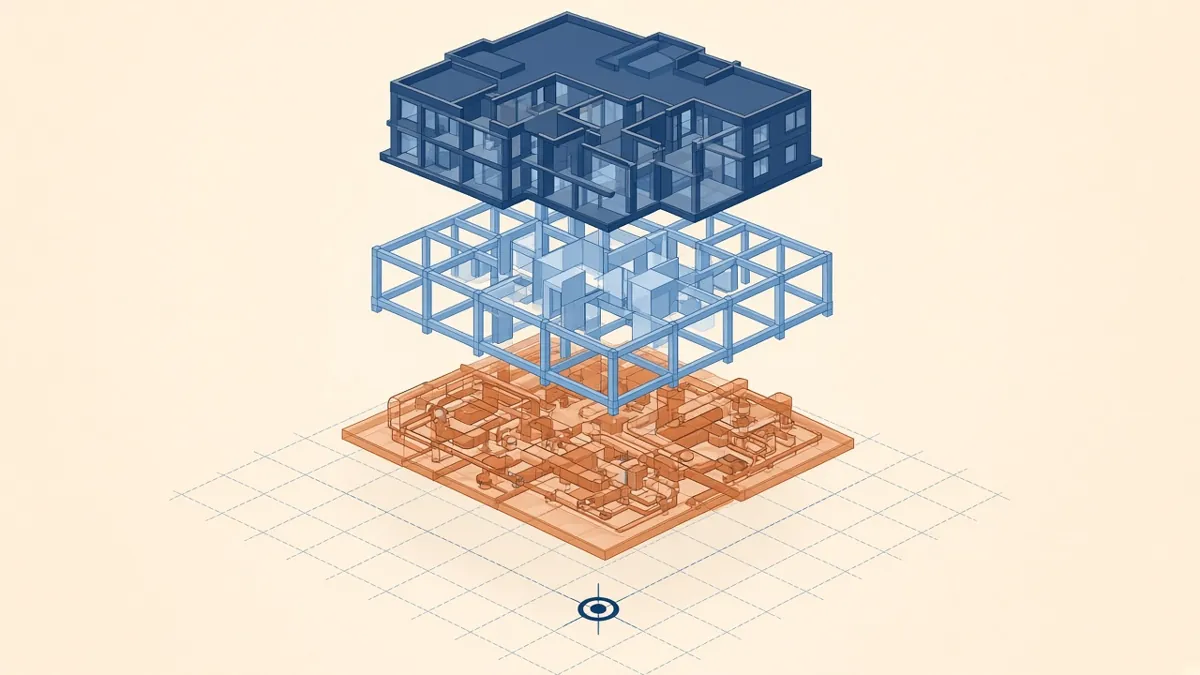
A Practical BIM Coordination Workflow for Design Teams
Setting up shared coordinates, model exchanges and coordination cycles that actually resolve issues.
Read more →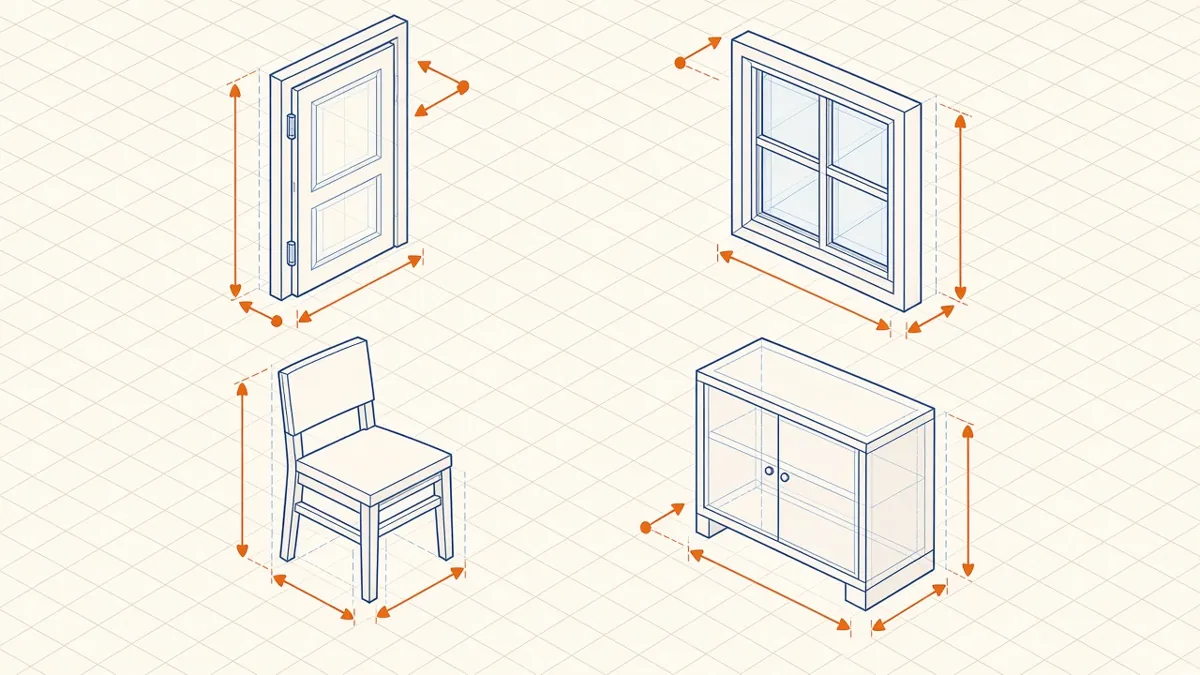
Revit Family Best Practices for Clean, Reliable Models
Building families that flex correctly, schedule cleanly and keep models light.
Read more →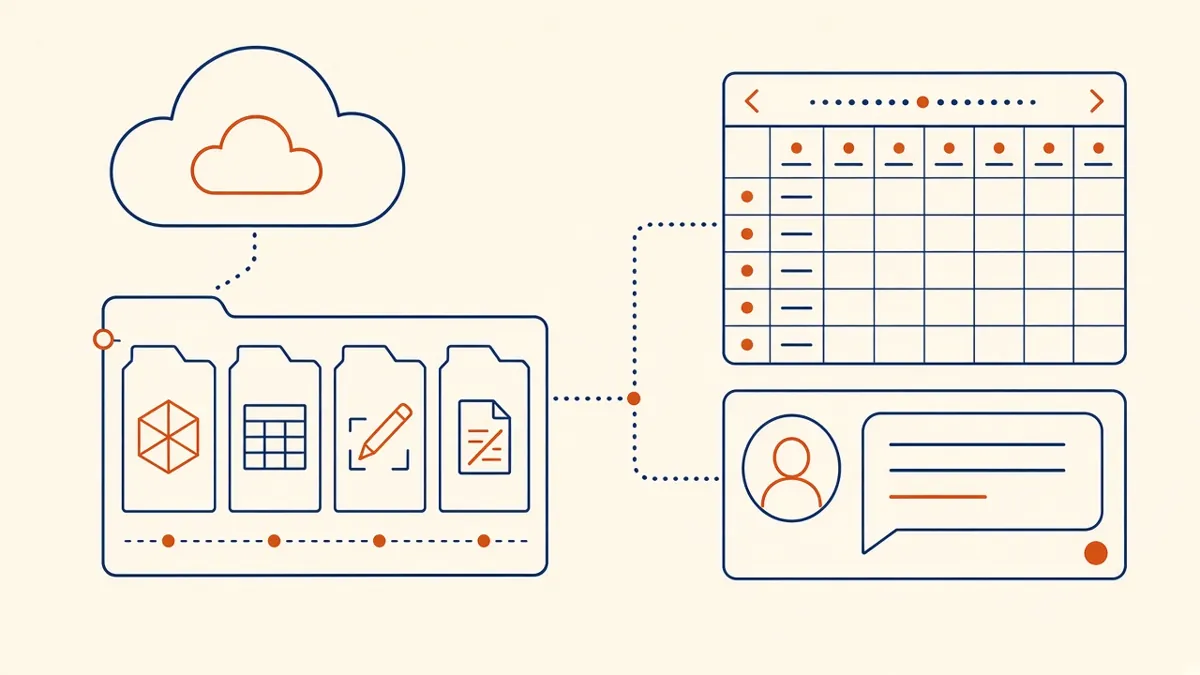
Outsourcing Workflow and File Exchange for Architecture Firms
Folder structures, version control and communication habits that keep remote production smooth.
Read more →