
Using Phases in Revit for Existing and New Work
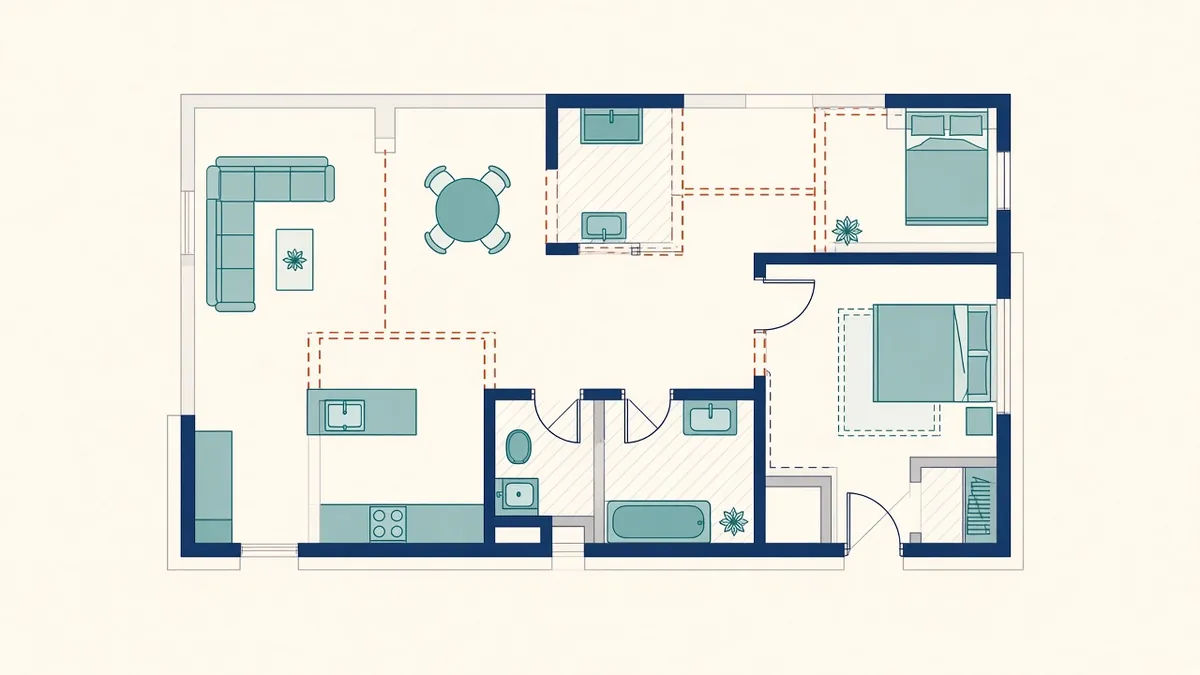
Refurbishment projects need to show what's there, what's going and what's new. Revit phasing is built for exactly that.
Alteration and refurbishment projects need drawings that show what exists, what's being removed and what's new. Revit's phasing tools handle this within one model, so changes are coordinated across all views.
How phasing works
Every element in Revit has two phase properties:
- Phase created: when the element was built
- Phase demolished: when it's removed, if ever
Projects have a list of phases, such as Existing and New Construction. Elements created in the existing phase and demolished in the new phase show as demolished in new construction views.
Phase filters
Each view has a phase and a phase filter. The filter controls how elements are shown based on their status:
- Existing
- Demolished
- New
- Temporary
Common filters include showing existing and demolished elements for demolition plans, and showing existing and new for proposed plans.
Graphic overrides
Phase graphic overrides define how each status looks, such as existing in halftone, demolished as dashed lines and new as solid. Set these in the template to match office standards.
Typical drawing set
- Existing plans showing the building as found
- Demolition plans showing existing and demolished elements
- Proposed plans showing existing to remain and new work
Each is a view of the same model with different phase settings.
Modelling existing conditions
Model existing elements in the existing phase. If the existing building comes from a survey or scan, check accuracy before relying on it. When new work replaces part of an existing wall, demolish the existing segment and model new work separately.
Doors and windows
Doors and windows inherit phases too. If an existing door is removed and the opening infilled, demolish the door and add a new infill wall. Wall openings in existing walls for new doors need careful phasing so the existing wall shows correctly.
Rooms and schedules
Rooms are phase-specific. You may need rooms in both existing and new phases for area schedules. Schedules can be filtered by phase.
Keep it simple
Add extra phases only when they're needed, such as for multi-stage projects. Too many phases make models confusing.
Common problems
- Elements created in the wrong phase
- Views with the wrong phase filter
- Demolished elements still appearing in proposed views
- Rooms missing in one phase
Check before issue
- 01How phasing works
- 02Phase filters
- 03Graphic overrides
- 04Typical drawing set
- 05Modelling existing conditions
- 06Doors and windows
Explain phases to consultants
If consultants link your model, tell them which phase to view. Otherwise they may see demolished elements or miss new work entirely.
Phasing takes a little planning, but it makes refurbishment drawings far more reliable than managing separate files for existing and proposed.
If your team needs extra production capacity for work like this, take a look at our Architectural production services, or tell us about your project.
Related articles
Revit Design Options: Comparing Alternatives in One Model
Testing alternatives without copying the whole model.
Read more →
Scan to BIM for Existing Buildings
Turning laser scans of existing buildings into reliable BIM models.
Read more →
Revit Views and View Templates Explained
Controlling what every view shows, consistently, with view templates.
Read more →