
Clash Detection With Navisworks: A Practical Guide
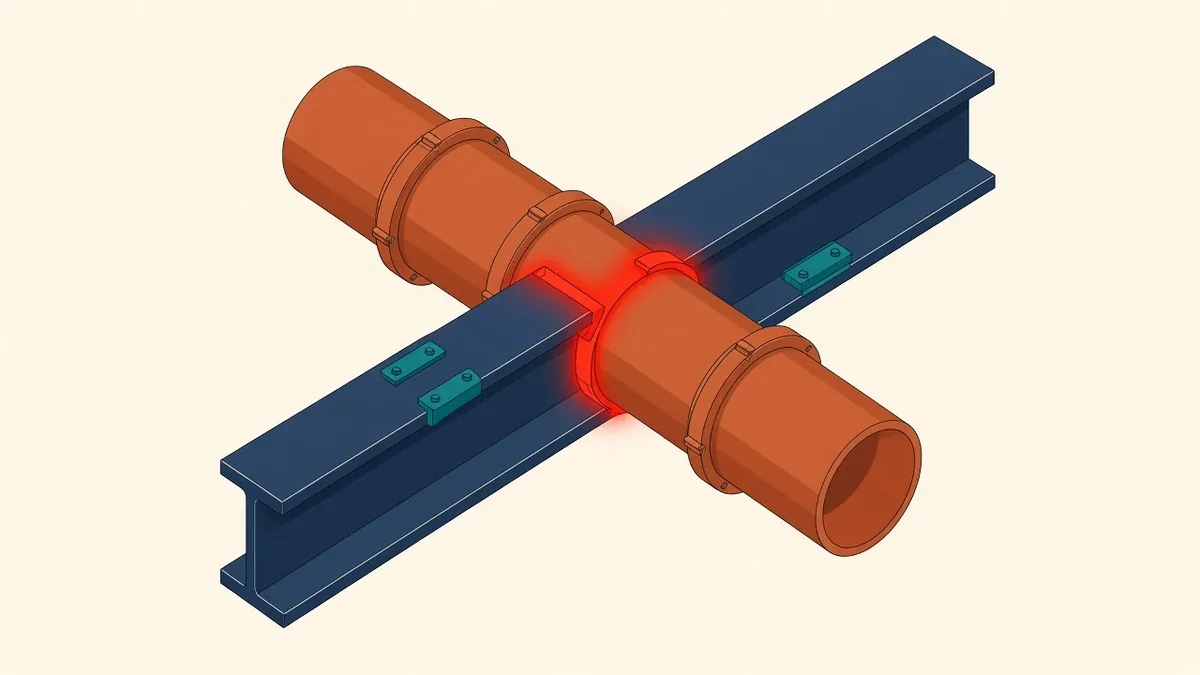
Navisworks can find thousands of clashes in minutes. The skill is in turning that list into decisions.
Autodesk Navisworks Manage is widely used for clash detection on BIM projects. Its Clash Detective tool compares models to find where elements intersect or come too close. Used well, it helps teams find and resolve conflicts before construction.
Federate the models
Clash detection starts with a federated model. Discipline models, such as Architectural, structural and MEP, are appended into Navisworks, often as NWC files exported from Revit or other tools. Make sure all models use shared coordinates so they align.
Set up selection sets
Selection sets define groups of elements, such as ductwork, pipework, structural beams or walls. Clear sets make clash tests targeted and repeatable.
Create clash tests
Rather than clashing everything against everything, create focused tests, such as:
- Ductwork against structure
- Pipework against structure
- Ductwork against pipework
- MEP against ceilings
- Sprinklers against lights
Focused tests produce more useful results.
Clash types
Navisworks supports different clash types, including:
- Hard clashes: elements physically intersecting
- Clearance clashes: elements within a set distance of each other
- Duplicates: identical elements in the same place
Clearance tests help check maintenance space and insulation allowances.
Set tolerances
Tolerances ignore very small overlaps that don't matter in practice. Agree tolerances with the team to avoid hundreds of trivial clashes.
Group results
Large numbers of clashes are often caused by a few underlying problems, such as one duct running through several beams. Grouping clashes by element, level or area makes them easier to manage.
Assign and track
Assign clashes to responsible parties and track their status, such as new, active, reviewed, approved and resolved. Navisworks includes status tracking, and issues can also be exported to other tools.
Report results
Clash reports with images and locations help teams understand issues. Reports can be exported in formats such as HTML or XML.
Run tests regularly
Don't rely on clash detection alone
Clash detection finds geometric conflicts, but not every coordination issue. Access, maintenance, sequencing and design intent need human review.
Keep a test template
Saving clash test settings and selection sets as a template means the same tests can be reused across model updates and projects. Consistent tests make it easier to track progress over time.
Review clashes in context
Before assigning a clash, look at it in the model. Some clashes aren't real problems, such as insulation overlapping a hanger, and some reveal bigger issues than the report suggests.
Navisworks clash detection is a powerful tool when tests are focused, results are grouped and issues are tracked to resolution.
If your team needs extra production capacity for work like this, take a look at our Architectural production services, or tell us about your project.
Related articles
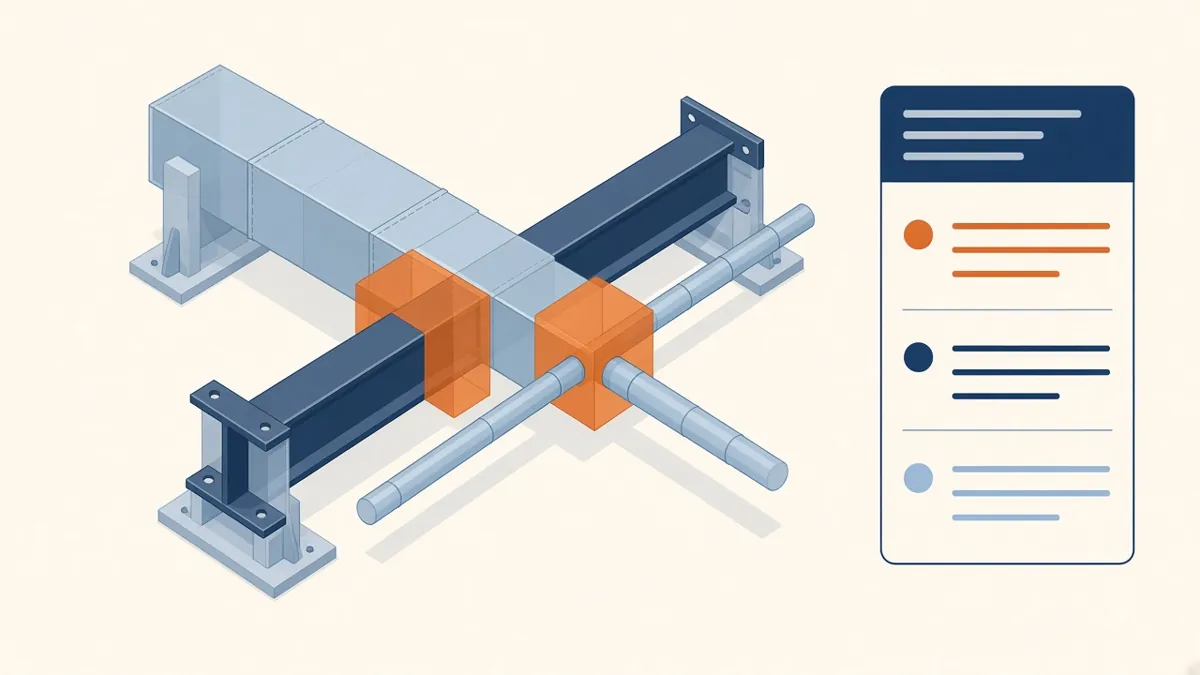
Clash Detection Explained for Architecture Teams
Hard clashes, clearance clashes and how to turn clash reports into decisions.
Read more →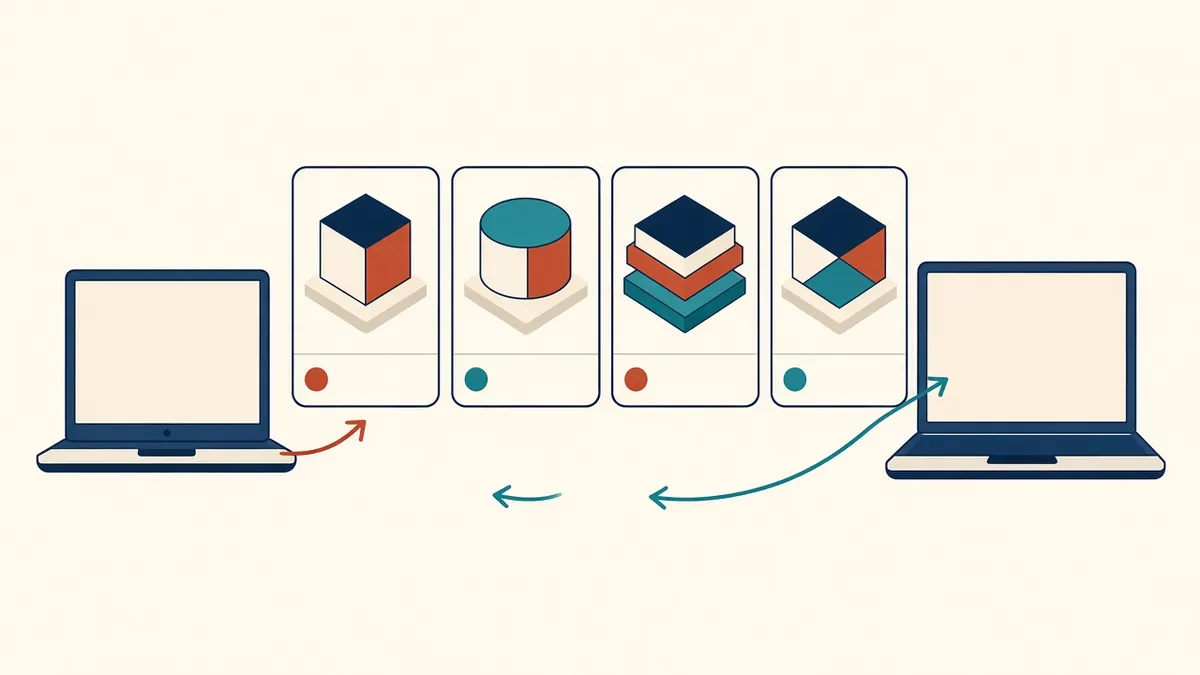
BCF Issue Tracking for MEP Coordination
Sharing coordination issues across software with BCF.
Read more →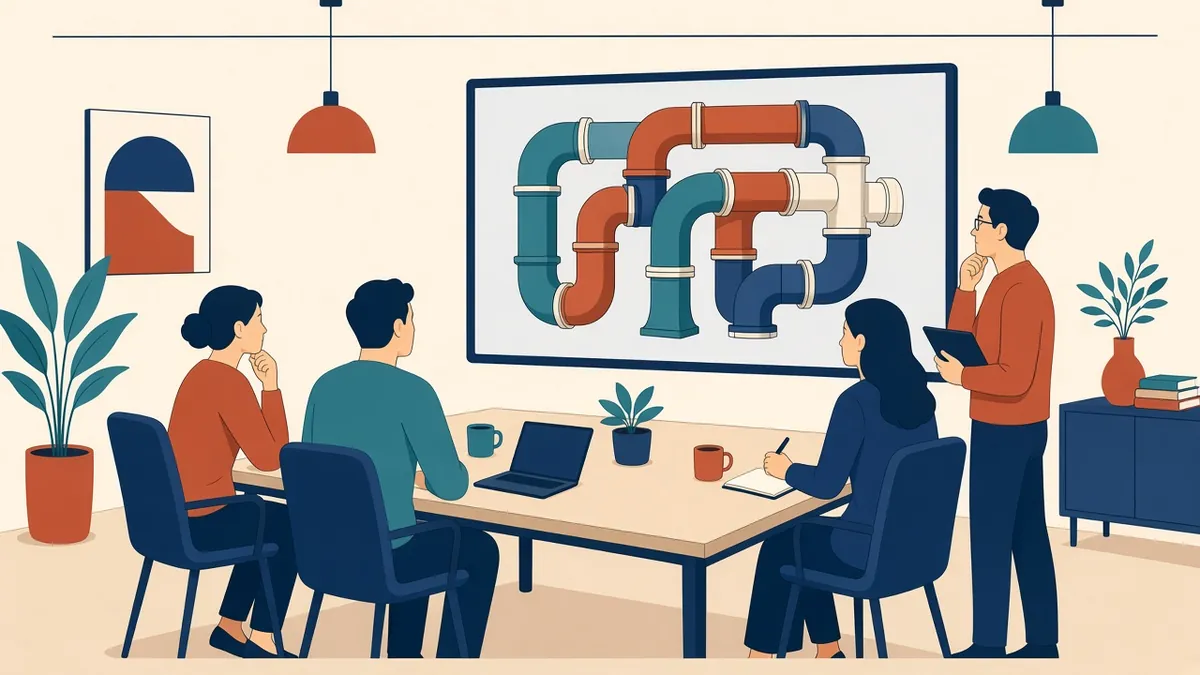
Running Effective MEP Coordination Meetings
Agendas, model reviews and actions that keep coordination moving.
Read more →