
Model Coordinates, Survey Points and Base Points
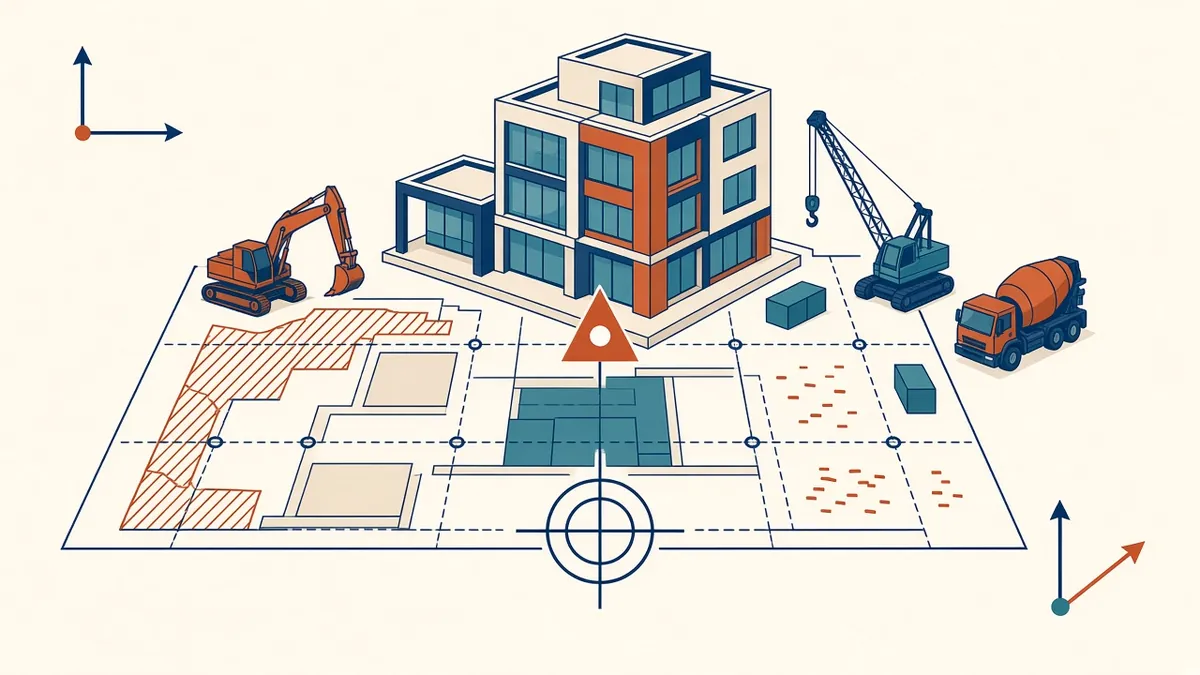
If models don't share the same coordinates, they won't line up, however carefully each one was built.
Coordinates are one of the most common sources of model problems. If models don't share the same coordinate system, they won't align when linked or federated, and site setting-out may be wrong. Understanding how coordinates work prevents these problems.
Revit's coordinate points
Revit has three key reference points:
- Internal origin: the fixed origin of the model's internal coordinate system, made visible as its own point in Revit 2020.2 and later
- Project base point: a reference point for the project, often placed at a grid intersection or building corner
- Survey point: a point linked to real-world coordinates, such as a site survey control point
These points work together to relate the model to the site.
Shared coordinates
Shared coordinates let several models use the same real-world coordinate system. In Revit, coordinates can be acquired from or published to linked models. Once set, linked models can be positioned using shared coordinates, so they align automatically.
Setting up coordinates
- Agree the coordinate system with the team, often based on the site survey
- Set the survey point in the site or coordination model
- Share coordinates with other discipline models
- Check alignment by linking models
- Record the setup in the BIM execution plan
Keep models near the origin
Models placed very far from the internal origin can experience graphics and accuracy problems. Revit limits how far elements can be from the origin. Keep geometry within a reasonable distance and use shared coordinates for real-world positions.
True north and project north
Models can have a true north, matching the site, and a project north, aligned with the building for drawing convenience. Set them correctly so site plans and solar studies are accurate.
Levels and datums
Common problems
- Models moved accidentally
- Survey points unclipped and moved without intent
- Coordinates acquired from the wrong model
- Different levels datums
- CAD files linked in the wrong position
Checking alignment
Link models and check that grids, levels and key elements align. Clash detection platforms will also show misaligned models.
Document the setup
Record coordinate values, base points and datums in the BIM execution plan, with screenshots. It helps new team members and partners.
- 01Revit's coordinate points
- 02Shared coordinates
- 03Setting up coordinates
- 04Keep models near the origin
- 05True north and project north
- 06Levels and datums
Other software
Other BIM and CAD tools use similar concepts with different terms. Make sure exchange formats, such as IFC, carry coordinate information correctly.
Correct coordinates keep models aligned with each other and with the site, avoiding costly mistakes.
If your team needs extra production capacity for work like this, take a look at our Architectural production services, or tell us about your project.
Related articles

Levels, Grids and Coordinates in Revit
Getting the foundations of a model right so every link lines up.
Read more →
Linking Models in Revit: Best Practice for Teams
Linking consultant models, CAD and point clouds without causing chaos.
Read more →
Model Accuracy Checks for Revit and BIM Projects
Practical checks that keep a BIM model accurate, healthy and trustworthy.
Read more →