
Producing Construction Documents from CAD Files in Revit
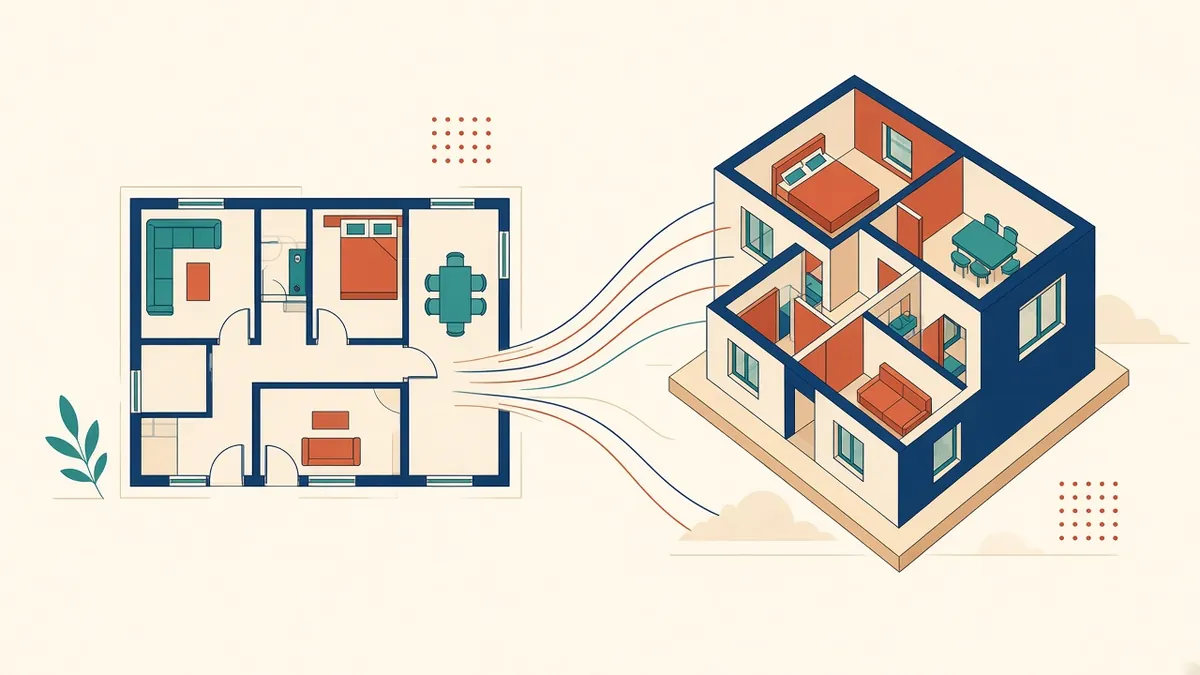
Plenty of projects still arrive as a folder of DWGs. Turning them into a clean Revit CD set takes more than a quick import.
Many firms still receive or hold design information in CAD, but want their construction documents in Revit. Converting CAD to Revit can be straightforward, as long as the CAD files are prepared properly and the team is clear about what's being modelled.
Prepare the CAD files
Before linking anything into Revit:
- Purge unused layers, blocks and styles
- Check units and drawing scale
- Move the drawing close to the origin, or note the coordinates used
- Remove xrefs that aren't needed, or bind those that are
- Confirm the drawings are the latest version
Clean files link faster and cause fewer problems with coordinates.
Link, don't import
Link CAD files into Revit rather than importing them. Linked files stay separate and can be unloaded or replaced, while imported files bring layers, line patterns and blocks into the model, which can bloat and clutter it. Place each CAD plan on its matching level and align grids carefully.
Set up levels and grids first
Create levels and grids in Revit based on the CAD drawings and the structural information. Everything else depends on them, so check them twice.
Model with intent
Model walls, floors, roofs, doors and windows using proper types, not generic placeholders where real types are known. Match wall thicknesses to the intended build-ups. Where the CAD drawing is unclear or inconsistent, record the question rather than guessing.
Decide what stays 2D
Not everything needs to be modelled. Many details are drawn as 2D drafting views, sometimes based on existing CAD details. Agree which elements are modelled and which are drafted, so effort goes where it adds value.
Build the sheet set
Common pitfalls
- CAD plans that don't align with each other floor to floor
- Elevations that don't match plans in the source drawings
- Exploded blocks and text that make tracing slow
- Missing information, such as sill heights or ceiling heights
Keep a list of discrepancies and send it to the design lead for decisions.
- 01Prepare the CAD files
- 02Link, don't import
- 03Set up levels and grids first
- 04Model with intent
- 05Decide what stays 2D
- 06Build the sheet set
Check against the source
When modelling is complete, overlay the CAD drawings on the Revit views and check for differences. Then check the Revit drawings as a normal CD set, with cross-references, schedules and annotation.
CAD to Revit conversion works best when it's treated as an opportunity to resolve inconsistencies, not just to retrace lines. The result is a coordinated model that makes every later change easier.
If your team needs extra production capacity for work like this, take a look at our Architectural production services, or tell us about your project.
Related articles
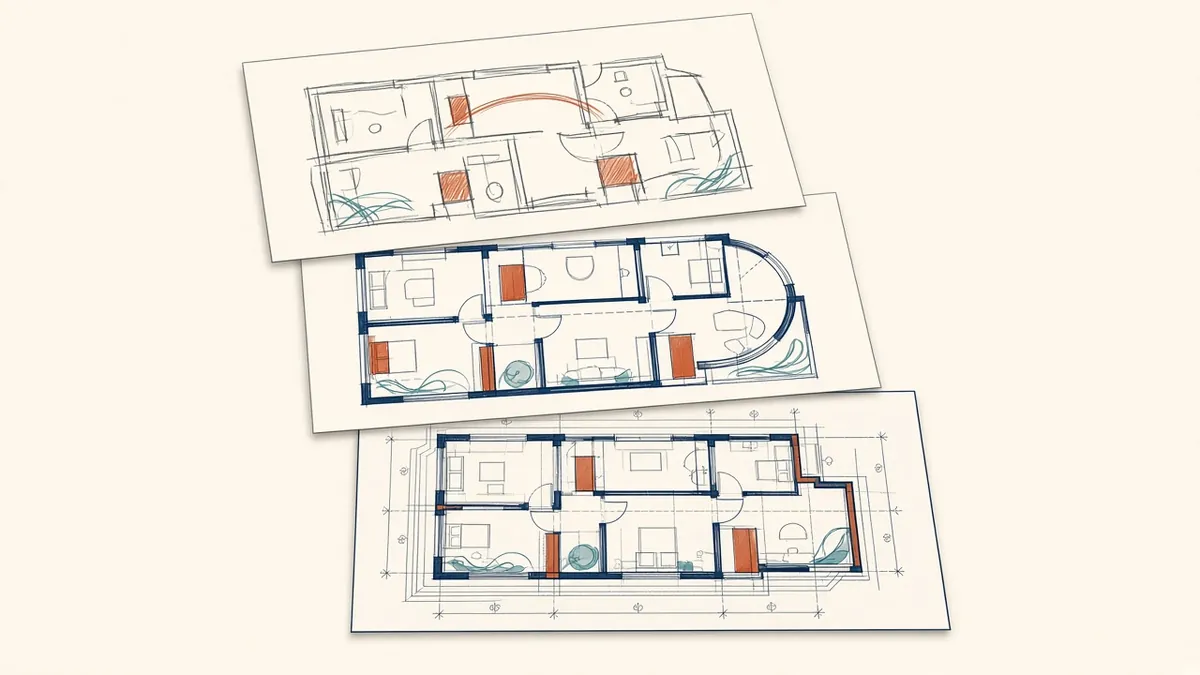
Moving from Design Development to Construction Documents
Setting up the CD phase so design decisions carry through cleanly.
Read more →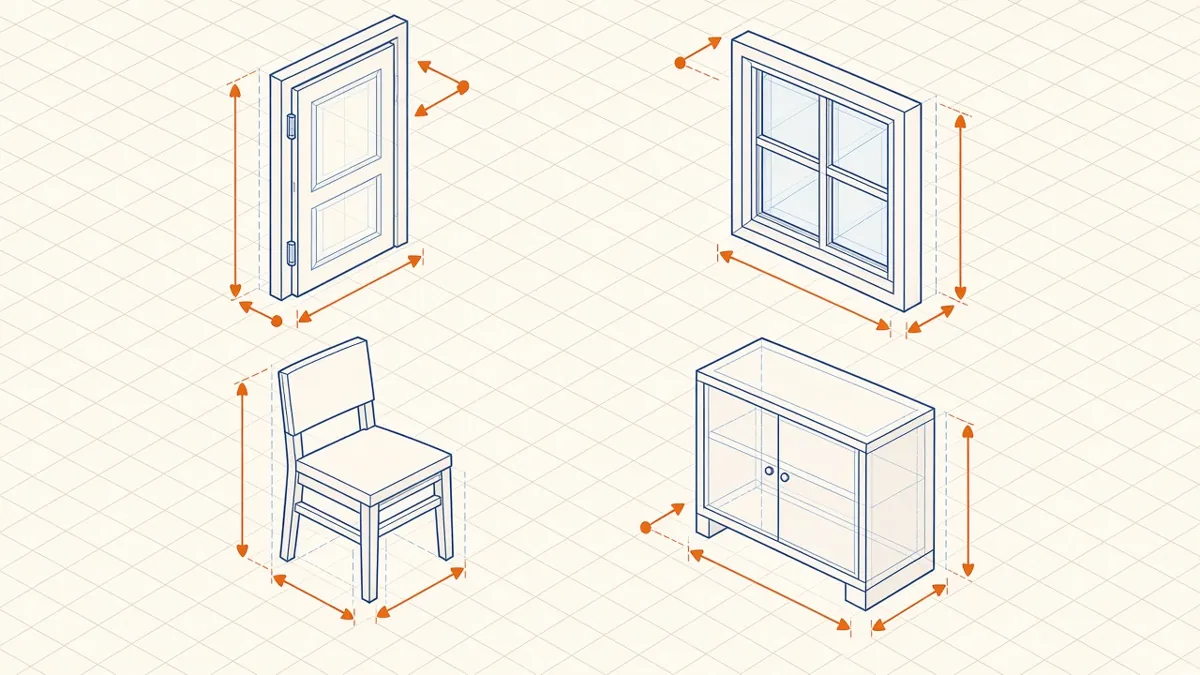
Revit Family Best Practices for Clean, Reliable Models
Building families that flex correctly, schedule cleanly and keep models light.
Read more →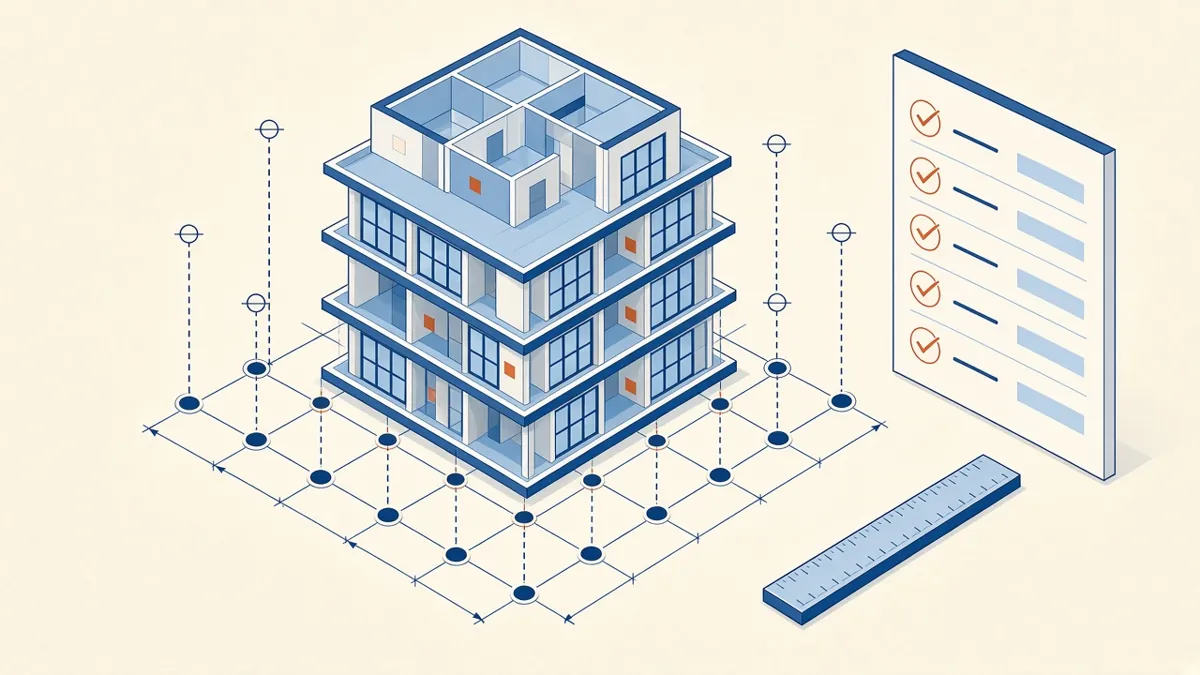
Model Accuracy Checks for Revit and BIM Projects
Practical checks that keep a BIM model accurate, healthy and trustworthy.
Read more →