
Revit Family Best Practices for Clean, Reliable Models
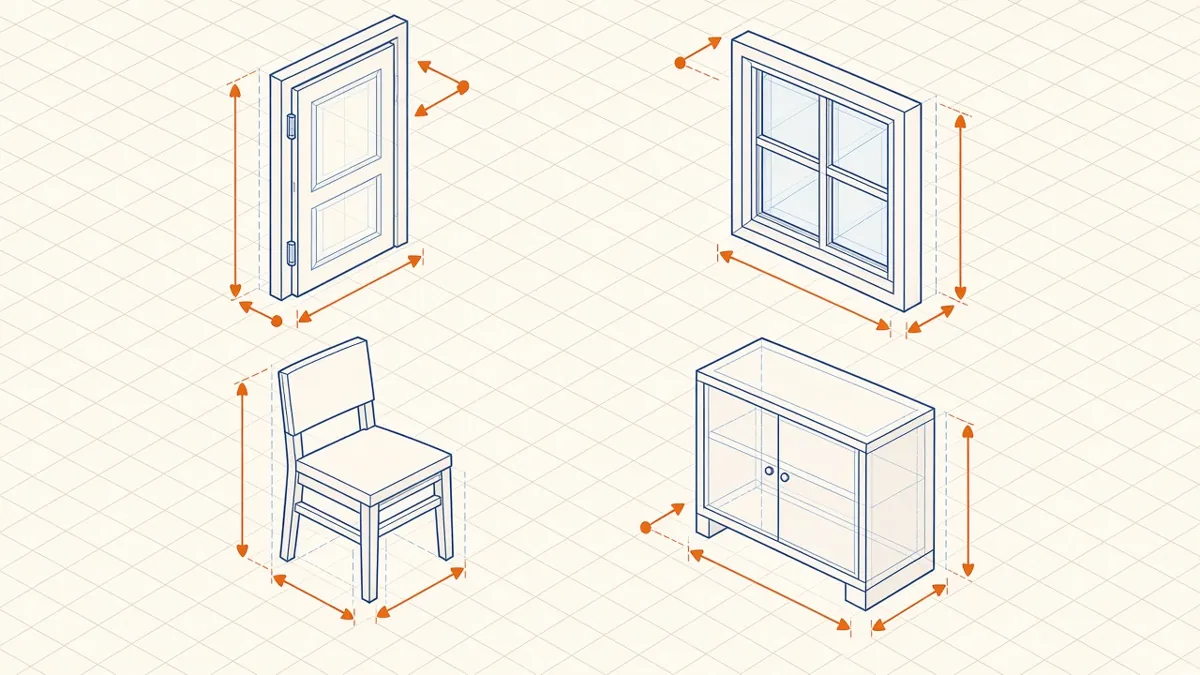
One badly built Revit family can slow a model, break a schedule and confuse a whole team. Good families do the opposite.
Revit families are the building blocks of every model. Well-made families flex correctly, schedule cleanly and keep files fast. Poor ones break when they're stretched, bloat file sizes and fill schedules with errors. Here are the practices that make the biggest difference.
Start from the right template
Always begin with the correct family template for the category, such as doors, windows, casework or generic models. The category controls how the family behaves, which schedules it appears in and how it's displayed in views. Changing it later is possible, but it's better to get it right first time.
Build on reference planes
Geometry should be locked to reference planes, and dimensions and parameters should drive the reference planes, not the geometry directly. Name important reference planes and set their "Is Reference" property, so the family can be dimensioned and aligned predictably in the project.
Flex it before you load it
Change every parameter to extreme values and check that the family behaves. If it breaks in the Family Editor, it'll break in the project. Flexing early saves hours of troubleshooting later.
Use parameters with intent
- Type parameters for values shared by every instance of a type, such as width and height of a standard door
- Instance parameters for values that vary per placement, such as sill height
- Shared parameters where data needs to appear in schedules or tags across families
- Formulas for dependent values, such as frame width driving overall width
Keep parameter names consistent with your office standard. Two parameters called "Width" and "Door Width" doing the same job will confuse schedules and the people reading them.
Control visibility by detail level
Keep geometry simple
Model only what the project needs to see and schedule. Overly detailed manufacturer content, imported CAD and dense meshes slow models down. If a family needs detail for rendering, consider a separate version for production.
Nest carefully
Nested families are useful for components such as handles or frames, but deep nesting makes families harder to edit and can slow regeneration. Use shared nested families only when the nested part needs to schedule or tag separately.
Assign materials through parameters
Use material parameters rather than fixed materials, so teams can change finishes in the project without editing the family. Keep material names aligned with the project's material library.
Name and organise the library
A clear naming convention, for example category, description and type, makes families easy to find. Store approved families in a controlled library, and keep a short record of what changed when a family is updated.
Purge before loading
Purge unused nested families, materials and imported line styles from the family file. Then check the file size. A light, clean family is easier for everyone on the project.
- 01Start from the right template
- 02Build on reference planes
- 03Flex it before you load it
- 04Use parameters with intent
- 05Control visibility by detail level
- 06Keep geometry simple
Test in a project
Finally, load the family into a test project. Tag it, schedule it, place it in different hosts and view it in plan, section and 3D. If it behaves in all of these, it's ready for production.
Good families take a little longer to build, but they pay that time back on every project that uses them.
If your team needs extra production capacity for work like this, take a look at our Architectural production services, or tell us about your project.
Related articles

Level of Development (LOD) Explained for Architects
What each LOD means in practice, and how to agree the right level for each stage.
Read more →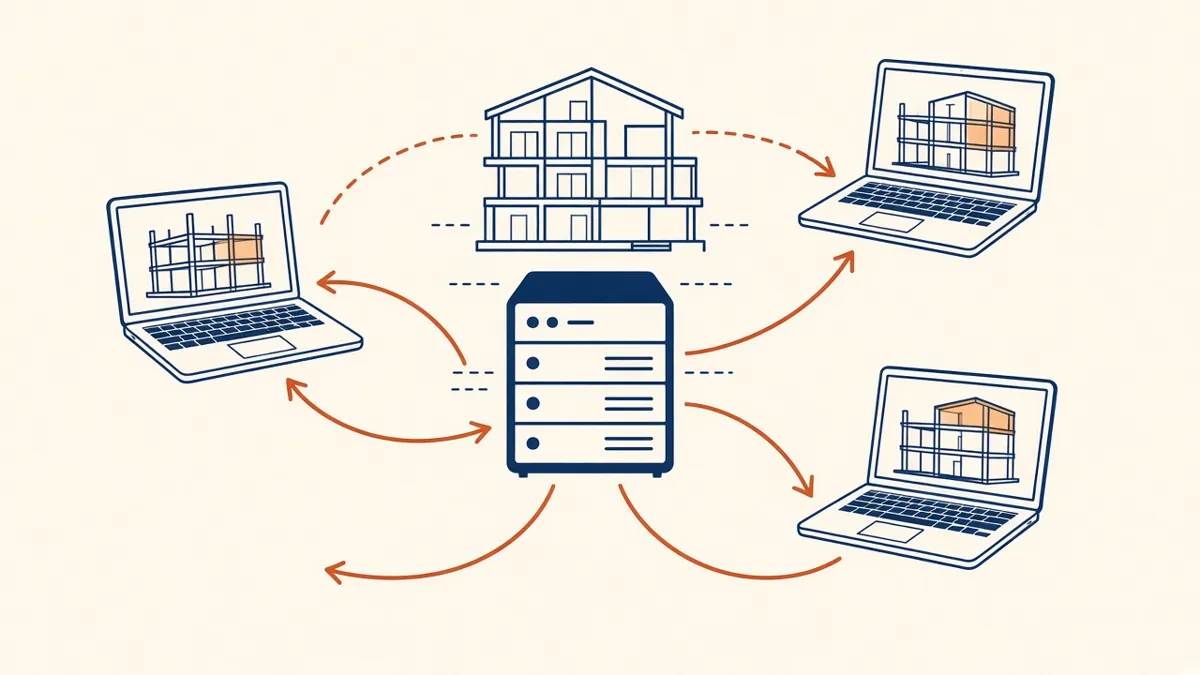
Revit Worksharing Basics: Central Models, Worksets and Syncing
How central models, worksets and syncing work, and the habits that keep shared models stable.
Read more →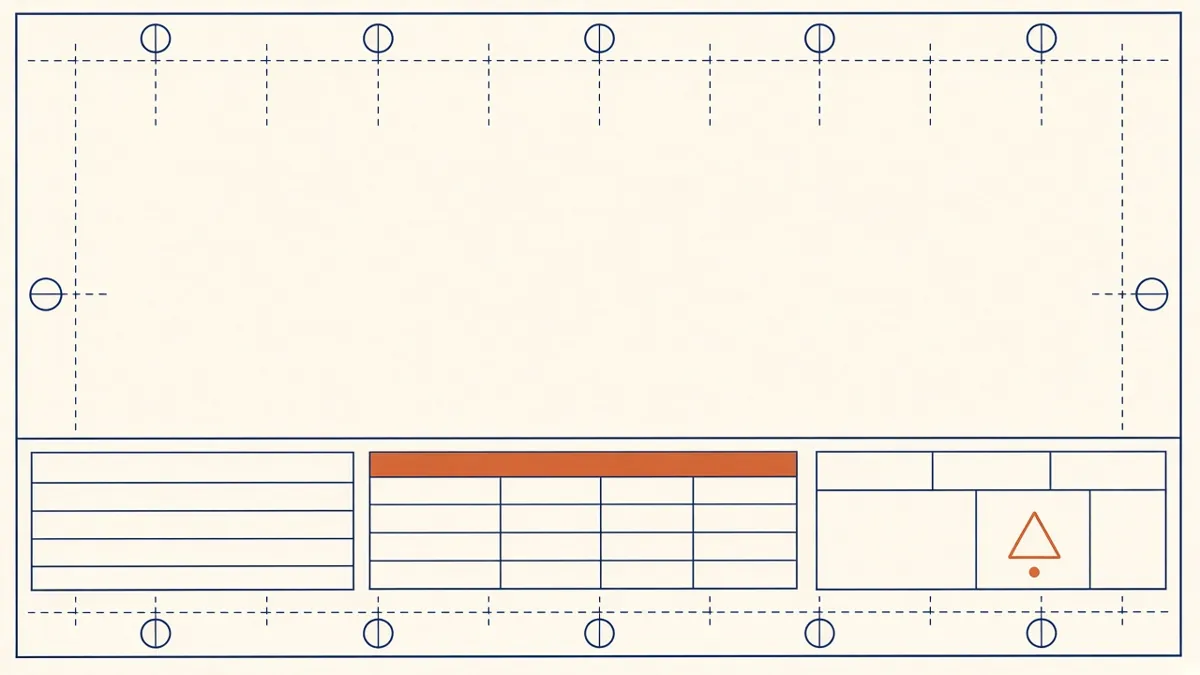
Drawing Sheet Standards: Numbering, Title Blocks and Naming
Sheet numbering, title blocks and naming conventions that keep large drawing sets readable.
Read more →