
Linking Models in Revit: Best Practice for Teams
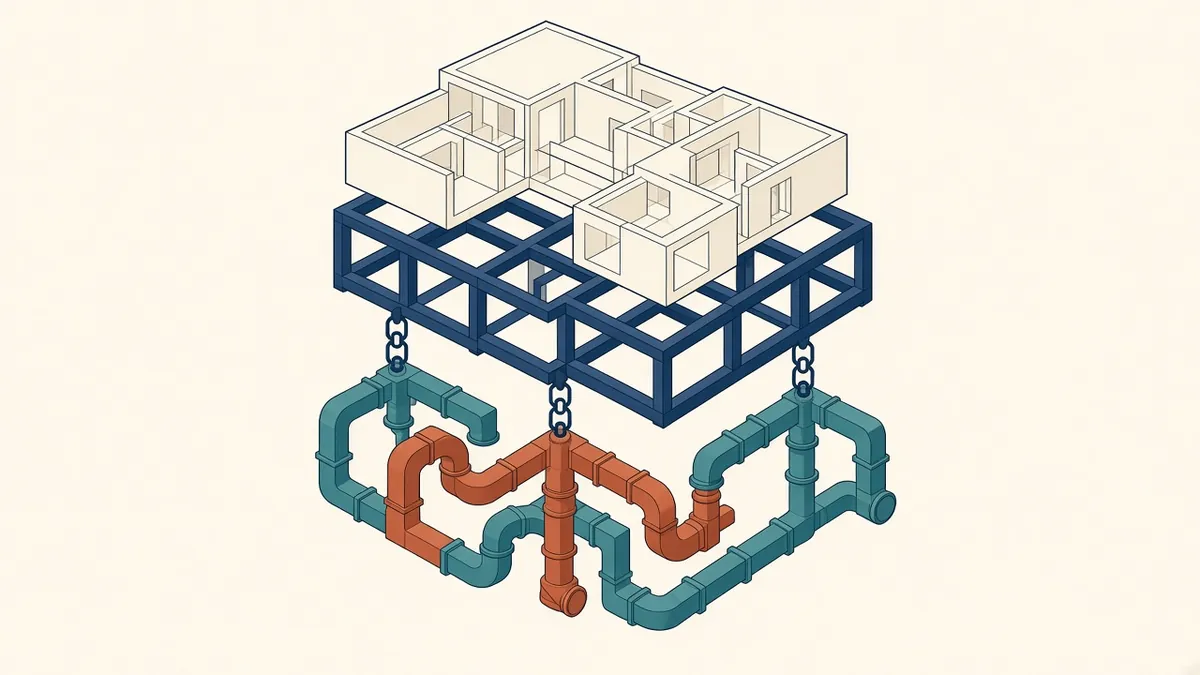
Linked models let each discipline own its work while everyone sees the whole building. Set them up carelessly and they drift apart.
Most Revit projects involve several models. Architects link structural and MEP models, and consultants link the Architectural model. Linking well keeps models aligned and manageable; linking badly causes misalignment, heavy files and confusion.
What can be linked
- Revit models from other disciplines or other parts of the project
- CAD files, such as surveys and consultant drawings
- IFC files from other platforms
- Point clouds from laser scans
- PDFs and images, for reference
Positioning
When linking, choose how the link is positioned. For coordinated projects, use shared coordinates, so each model sits in its agreed real-world position. Linking origin to origin works only if all models share the same internal origin and setup. Agree the approach in the BIM execution plan.
Overlay or attachment
Revit links can be set as overlay or attachment. Overlays don't carry through when your model is linked into another model, which prevents circular references and unnecessary nesting. Attachments do carry through. Overlay is often preferred for consultant links.
Worksets for links
Put each link on its own workset. Team members can then close link worksets when they don't need them, which improves performance.
Managing link versions
Store consultant models in a consistent location, and replace them with new versions at each exchange. Keep a record of which version is linked. Avoid editing consultant models; raise issues instead.
Visibility of links
Control how links appear using visibility and graphics, either by host view or by link view settings. Halftone is common for consultant models in Architectural drawings.
Copy and monitor
Revit can copy and monitor elements, such as grids and levels, from linked models. When the linked model changes, Revit flags differences. This is useful for keeping grids and levels aligned with structure.
Point clouds
Point clouds can be very large. Link them and use section boxes or crop regions to show only the area being modelled. Store them locally or on fast storage where possible.
Cloud models
With cloud worksharing, models in the same project can be linked directly from the cloud. Permissions and project structure affect which models are available.
Common problems
- Links positioned by origin instead of shared coordinates
- Nested links causing duplication
- Outdated links used for coordination
- Links on the wrong workset
Checking links
At each exchange, check alignment at grids and levels, confirm the link version and review any changes that affect your design.
- 01What can be linked
- 02Positioning
- 03Overlay or attachment
- 04Worksets for links
- 05Managing link versions
- 06Visibility of links
Document the linking rules
Good linking practice is essential to coordinated BIM. With clear rules and regular checks, linked models become a reliable picture of the whole project.
If your team needs extra production capacity for work like this, take a look at our Architectural production services, or tell us about your project.
Related articles

Levels, Grids and Coordinates in Revit
Getting the foundations of a model right so every link lines up.
Read more →
A Practical BIM Coordination Workflow for Design Teams
Setting up shared coordinates, model exchanges and coordination cycles that actually resolve issues.
Read more →
Scan to BIM for Existing Buildings
Turning laser scans of existing buildings into reliable BIM models.
Read more →