
Level of Development (LOD) Explained for Architects
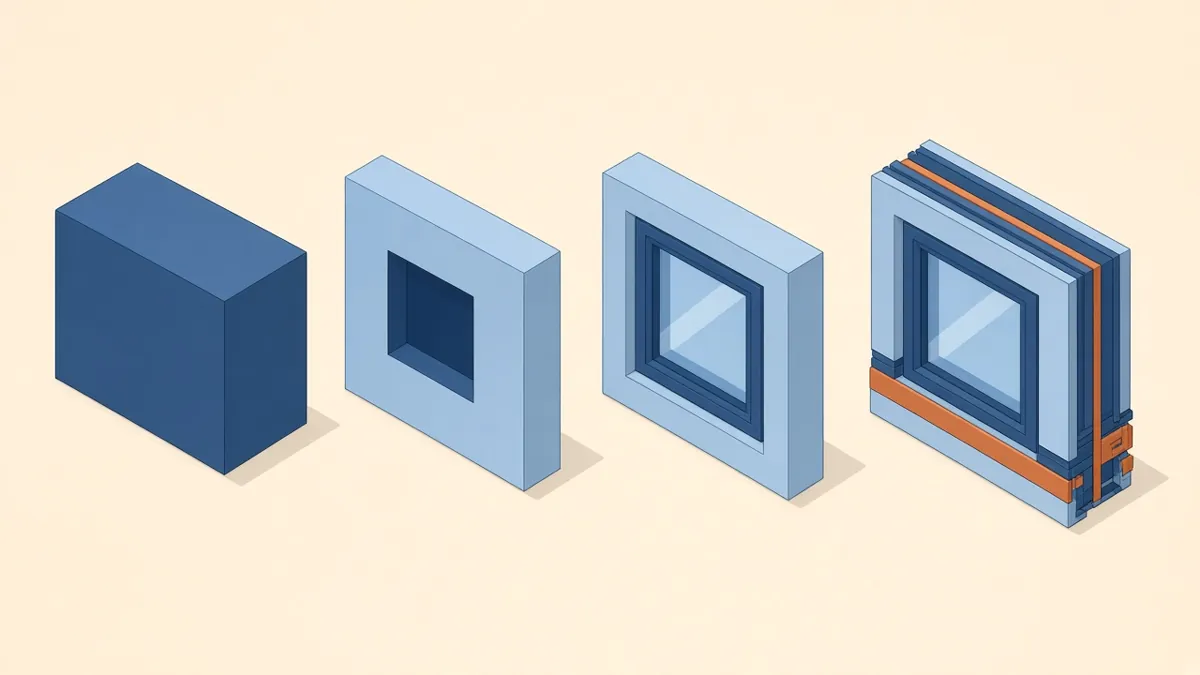
"How detailed should the model be?" is one of the most common BIM questions. LOD is the shared language for answering it.
"Model it to LOD 350" is a common line in BIM briefs, but people don't always mean the same thing by it. Getting LOD right avoids two expensive mistakes: modelling far more than anyone needs, or handing over a model that can't support the next stage.
What LOD actually measures
In the US, LOD usually refers to the Level of Development defined in the BIMForum LOD Specification. It describes how far an element's geometry and information have been developed, and therefore how much the rest of the team can rely on it. It's about reliability, not just visual detail.
The common LOD levels
- LOD 100: the element is shown symbolically or as a mass. Area, height and volume may be approximate.
- LOD 200: a generic placeholder with approximate size, shape, location and orientation.
- LOD 300: specific size, shape, location and orientation that can be measured directly from the model.
- LOD 350: as LOD 300, plus the interfaces with other building systems, such as supports and connections needed for coordination.
- LOD 400: detailed enough for fabrication and assembly.
- LOD 500: field-verified representation. The BIMForum specification notes this as a level of verification rather than a further level of development.
A model doesn't have one LOD. Different elements reach different levels at different times. Walls might be at LOD 300 while furniture is still at LOD 100.
- LOD 100Symbol or generic mass. Shows that an element exists, with approximate area or volume.
- LOD 200Generic system with approximate size, shape, location and orientation.
- LOD 300Specific size, shape, location and orientation that can be measured from the model.
- LOD 350Level 300 plus the interfaces and connections with nearby elements and systems.
- LOD 400Enough detail for fabrication and installation.
LOD versus Level of Detail
Some people use LOD to mean Level of Detail, which is about how much graphic detail an element shows. A highly detailed object can still be unreliable if it's in the wrong place or uses placeholder data. That's why the BIMForum approach focuses on development and reliability.
The UK approach: Level of Information Need
On UK projects working to BS EN ISO 19650, the industry has moved towards the concept of Level of Information Need, set out in BS EN 17412-1, which has also been published internationally as ISO 7817-1. Rather than a single number, it defines the geometry, alphanumeric information and documentation each element needs for a specific purpose and stage. It's more flexible, but it has to be written into the project's information requirements.
UAE projects
Setting LOD by stage
A typical progression looks like this:
- Concept: mostly LOD 100 to 200
- Design development: key elements at LOD 200 to 300
- Construction documents: Architectural elements largely at LOD 300, with LOD 350 where coordination needs it
- Fabrication: LOD 400, usually by trade contractors
- Handover: verified information where the client needs an as-built model
Write it into a model element table
The most useful tool is a model element table, often part of the BIM execution plan. It lists each element type, the LOD required at each stage and who's responsible for it. This avoids arguments later about who was meant to model what.
Common mistakes
- Asking for one LOD for the whole model
- Modelling to LOD 400 when the brief only needs construction documents
- Treating detailed families as automatically reliable
- Forgetting to specify information, not just geometry
Keep it purposeful
LOD should always answer a question: what does the team need to rely on at this stage, and for what purpose? Model to that, and the model stays useful without becoming heavy.
If your team needs extra production capacity for work like this, take a look at our Architectural production services, or tell us about your project.
Related articles
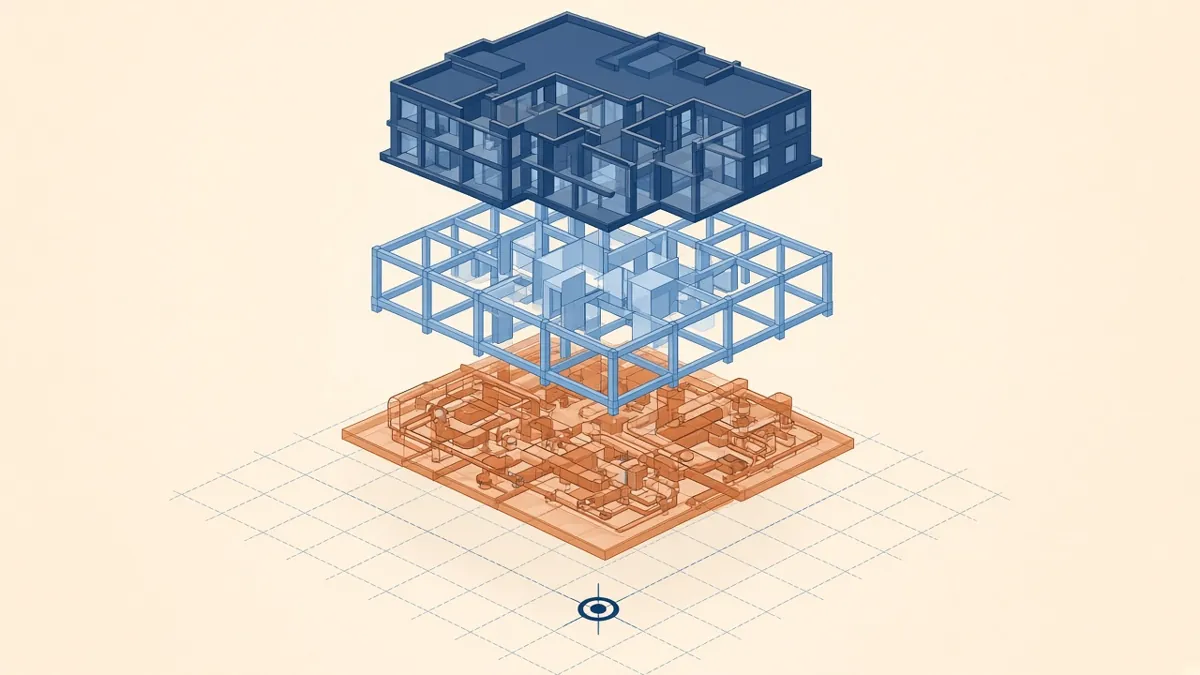
A Practical BIM Coordination Workflow for Design Teams
Setting up shared coordinates, model exchanges and coordination cycles that actually resolve issues.
Read more →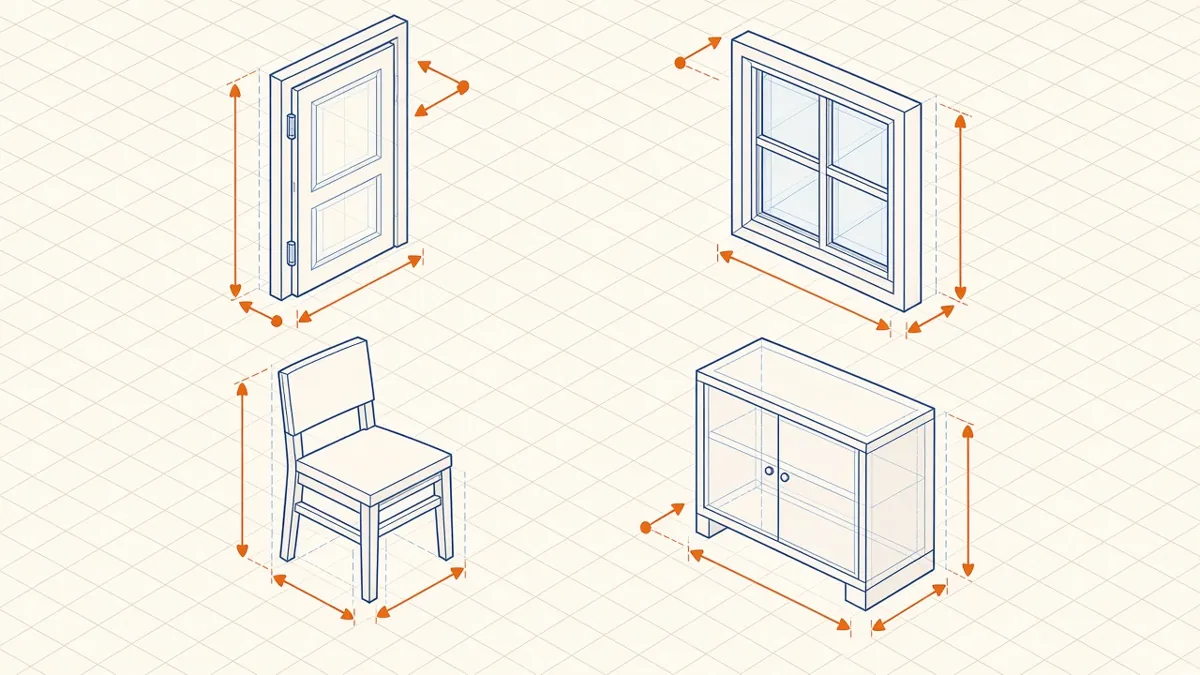
Revit Family Best Practices for Clean, Reliable Models
Building families that flex correctly, schedule cleanly and keep models light.
Read more →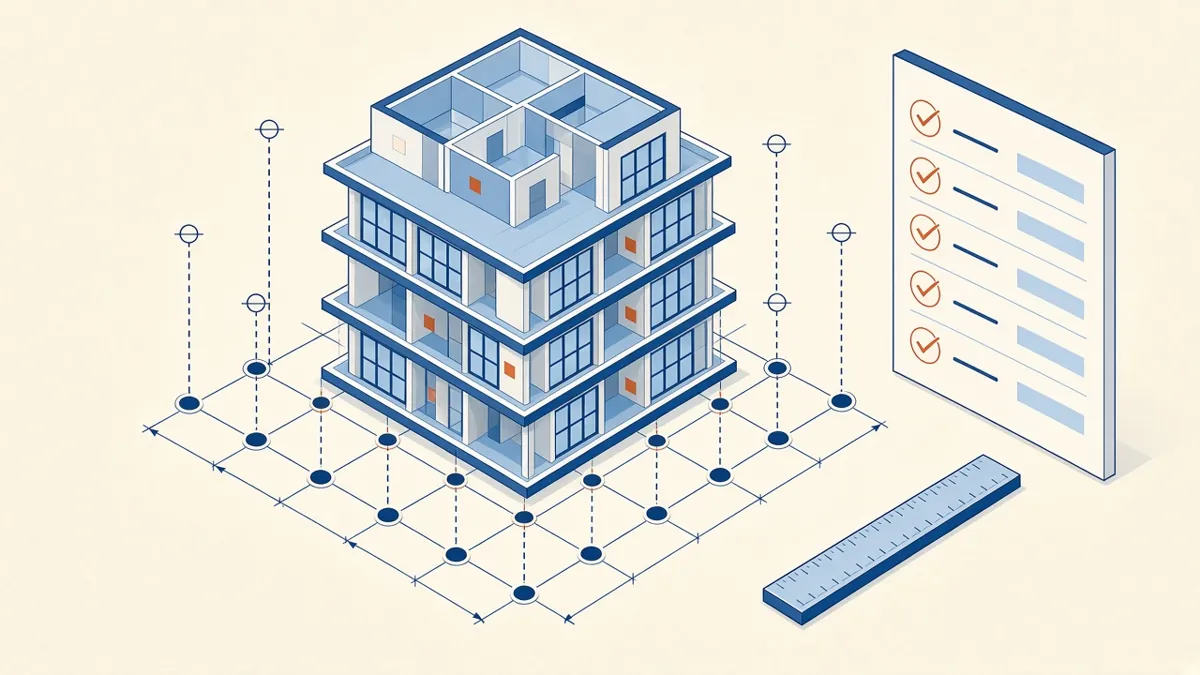
Model Accuracy Checks for Revit and BIM Projects
Practical checks that keep a BIM model accurate, healthy and trustworthy.
Read more →