Visualisation from Revit Models
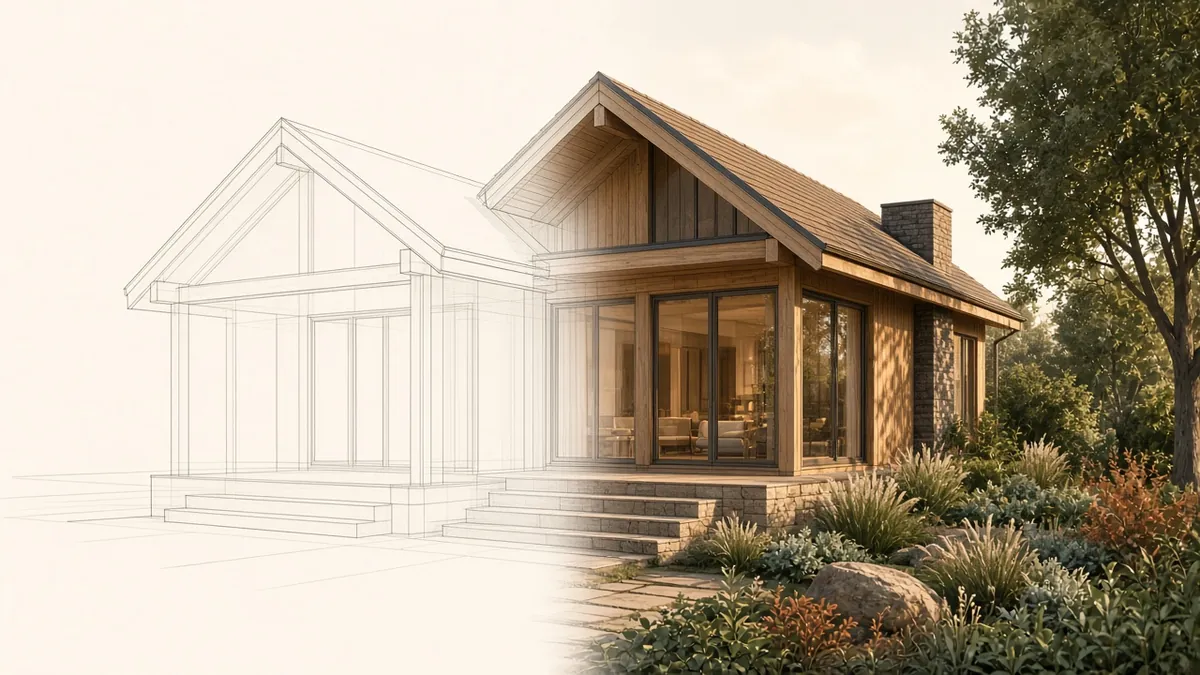
You've already built the model. With a bit of care, it can also tell the design story visually.
A Revit model contains most of the geometry needed for visualisation. With good materials and lighting, it can produce useful images for design reviews and client presentations, either in Revit itself or through connected visualisation tools.
Options for visualisation
- Revit views: realistic and shaded views with shadows and materials, useful for quick reviews
- Built-in rendering: Revit includes a rendering engine for still images
- Real-time tools: plugins and applications such as Enscape, Twinmotion and Lumion connect to Revit models and produce real-time walkthroughs and renders
- Cloud rendering: some services render images remotely
Choose based on the purpose, from quick design checks to polished presentation images.
Prepare the model
- Use correct materials for visible elements
- Remove clutter and working elements from views
- Check that geometry is complete where the camera sees
- Add entourage, such as people and trees, appropriate to the image
- Use design options or phases to show the right scheme
Materials
Materials control appearance. Revit materials have render appearance assets that real-time tools usually read. Name materials clearly and keep a consistent library, so visualisation tools map them reliably.
Lighting
Sun settings, including location and time, control daylight. For interiors, artificial lights in families can contribute to renders. Real-time tools often provide easier lighting controls.
Cameras and views
Set up camera views with sensible eye heights and focal lengths. Save views for each image, so they can be updated as the design develops.
Keep it honest
Performance
Visualisation can be demanding. Use section boxes and hide unneeded elements to speed up rendering.
Live links
Many real-time tools offer live links with Revit, so changes in the model appear immediately. This supports fast design reviews.
Common problems
- Materials without proper appearance assets
- Missing geometry, such as unmodelled ceilings
- Overlapping faces causing flickering
- Very large files slowing rendering
When to use specialists
For high-end marketing images, specialist visualisers may still produce the final images. Revit models give them a coordinated starting point.
- 01Options for visualisation
- 02Prepare the model
- 03Materials
- 04Lighting
- 05Cameras and views
- 06Keep it honest
Plan visualisation into the programme
If images are needed for planning submissions or client presentations, allow time for preparing the model, testing views and refining materials. Last-minute renders often reveal unmodelled areas or incorrect materials, which then need fixing under pressure. Agreeing views early with the client also avoids rework.
Using the model for visualisation keeps images aligned with the design, saving time and reducing errors compared with building separate presentation models.
If your team needs extra production capacity for work like this, take a look at our Architectural production services, or tell us about your project.
Related articles
Revit Design Options: Comparing Alternatives in One Model
Testing alternatives without copying the whole model.
Read more →
Modelling Curtain Walls in Revit
Grids, mullions, panels and types for clean curtain wall models.
Read more →
What Is BIM? A Practical Explanation for Architects
What BIM really means in day-to-day practice, beyond the buzzword.
Read more →