
Building Reliable Schedules in Revit
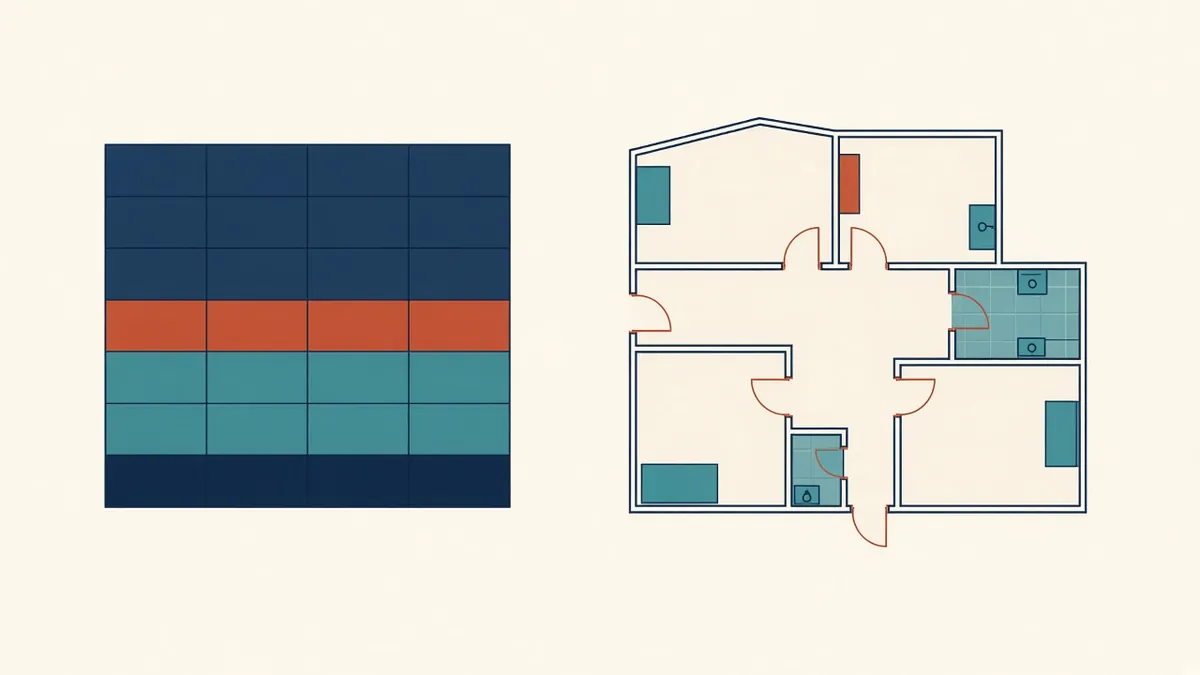
A schedule pulled from the model can't fall out of step with the drawings, as long as the model data behind it is right.
Schedules are one of Revit's biggest advantages over CAD. They're live lists of model elements, so they update as the design changes. Used well, they replace hours of manual counting and checking.
Types of schedules
- Element schedules: doors, windows, rooms, walls, furniture and more
- Material takeoffs: quantities of materials within elements
- Sheet lists: all sheets in the project
- View lists: all views, useful for model management
- Note blocks and key schedules: for annotation and standard values
Fields
Schedules display parameters as columns. Include only the fields needed for the purpose, and use shared parameters for custom information. Calculated values can derive information, such as area ratios, but keep formulas simple and documented.
Filtering and sorting
Filters limit which elements appear, such as only fire-rated doors or only rooms on a certain level. Sorting and grouping organise rows, such as by level then number. Headers and footers can show counts and totals.
Key schedules
Key schedules let you define standard sets of values, such as room finish styles, and apply them by choosing a key. Changing the key updates every element that uses it. This works well for repeated room types.
Editing in schedules
You can edit parameter values directly in schedules, which can be faster than editing elements one by one. Be careful: changes in a schedule change the model.
Formatting
Set column widths, text styles and borders to match office standards. Save formatted schedules in the template so every project starts with them.
Placing on sheets
Exporting
Schedules can be exported as delimited text for use in spreadsheets, such as for cost planning or client reporting. Remember that exported data is a snapshot, not live.
Common problems
- Elements missing from schedules because they're the wrong category or on unplaced phases
- Information typed into the wrong parameter
- Rooms not placed or not enclosed, so areas are wrong
- Duplicate marks or numbers
- Schedules filtered so tightly that items are hidden
Use schedules for checking
Schedules are great quality checks. Sort by a parameter to find blanks, odd values or duplicates. A schedule of door marks quickly shows duplicates, and a room schedule reveals unnamed rooms.
- 01Types of schedules
- 02Fields
- 03Filtering and sorting
- 04Key schedules
- 05Editing in schedules
- 06Formatting
Material takeoffs
Material takeoffs can support quantity estimating, but results depend on how accurately elements are modelled. Treat them as a guide unless the model has been prepared specifically for quantities.
Schedules turn the model into reliable data. Set them up thoughtfully, and they'll save time and catch errors on every project.
If your team needs extra production capacity for work like this, take a look at our Architectural production services, or tell us about your project.
Related articles
Revit Shared Parameters: When and How to Use Them
Making custom data taggable and schedulable across families and projects.
Read more →
Door and Window Schedules That Stay Accurate
What to include, how to generate them and how to keep them in step with the plans.
Read more →
Room Finish Schedules and Finish Plans
Choosing between schedules and finish plans, and keeping finish codes consistent.
Read more →