Revit Design Options: Comparing Alternatives in One Model
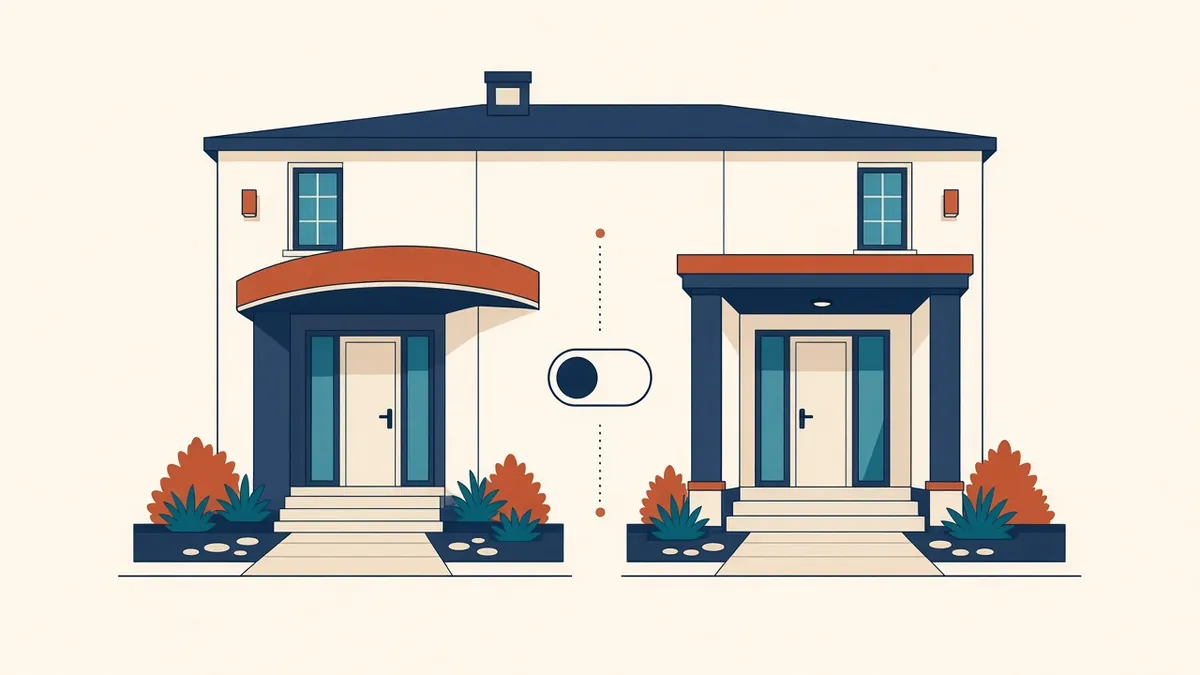
Clients love to compare options. Design options let you show them without duplicating the whole model.
Design rarely follows a straight line. Clients want to see options, and designers need to test ideas. Revit's design options let you develop alternatives within one model, without copying the whole project.
How design options work
Design options are organised into option sets. Each set contains a primary option and one or more secondary options. For example, an entrance option set might include a glazed lobby as primary and a canopy as secondary.
Elements not in any option are part of the main model and appear in every option.
Viewing options
Each view can be set to show a particular option from each set. By default, views show the primary option. You can create views showing secondary options for comparison and presentation.
When to use design options
- Comparing a few alternatives for one area, such as entrances, stairs or facades
- Testing layouts within a defined part of the building
- Presenting options to clients side by side
When not to use them
- For very different whole-building schemes, separate models may be simpler
- For long-term variations, such as phases, use phasing instead
- For many small variants, the model can become hard to manage
Accepting an option
When a decision is made, accept the primary option. Revit deletes the secondary options and moves the primary elements into the main model. Make the chosen option primary before accepting. Consider saving a copy of the model before accepting, in case the other options are needed later.
Common problems
- Elements accidentally placed in the main model instead of an option
- Hosted elements, such as doors in walls that are in different options
- Rooms and schedules behaving unexpectedly with options
- Too many option sets left unresolved during documentation
Good practice
- Name option sets and options clearly
- Limit the number of active option sets
- Resolve options before construction documents
- Communicate which option is primary to the whole team
Coordination
If consultants link your model, they'll see the primary option by default. Tell them which option is current, or resolve options before sharing for coordination.
Presenting options
Create matching views for each option, with the same camera or crop, so comparisons are fair. Schedules can show areas for each option, helping clients compare.
- 01How design options work
- 02Viewing options
- 03When to use design options
- 04When not to use them
- 05Accepting an option
- 06Common problems
Record the decision
Design options are a useful tool when used for focused alternatives. Kept tidy and resolved promptly, they make design exploration faster without compromising the model.
If your team needs extra production capacity for work like this, take a look at our Architectural production services, or tell us about your project.
Related articles
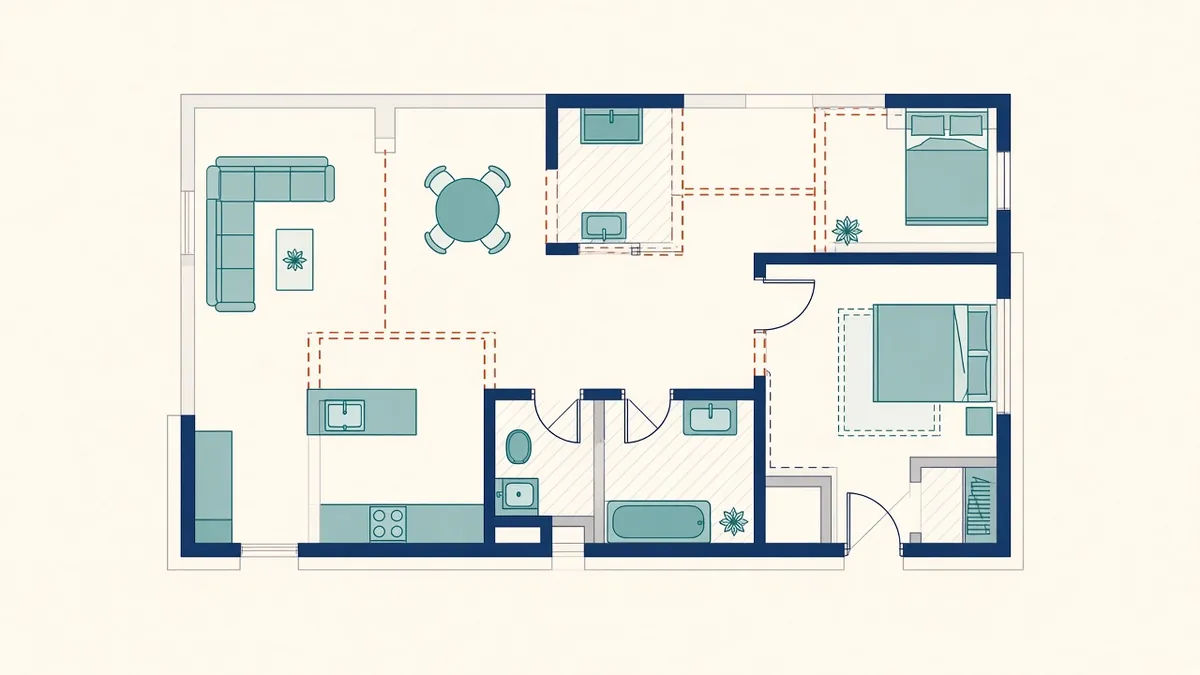
Using Phases in Revit for Existing and New Work
Showing existing, demolished and new work correctly with phases and filters.
Read more →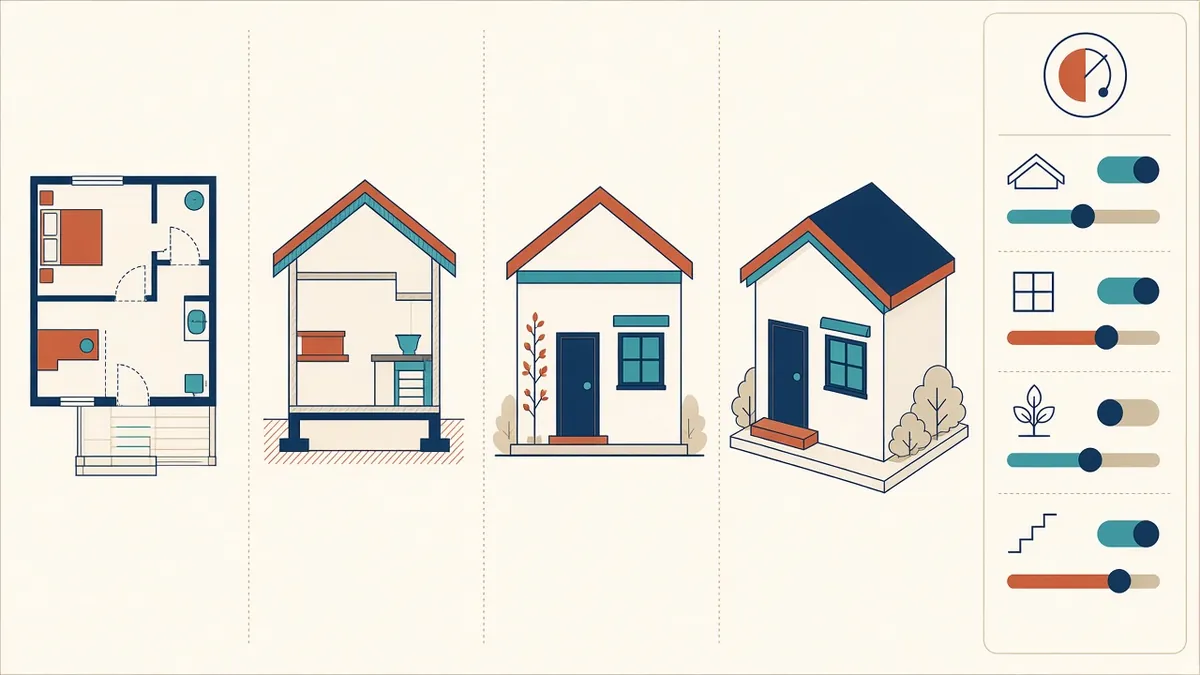
Revit Views and View Templates Explained
Controlling what every view shows, consistently, with view templates.
Read more →
Visualisation from Revit Models
Getting good images from the model without rebuilding it elsewhere.
Read more →