
Upgrading Revit Versions on Live Projects
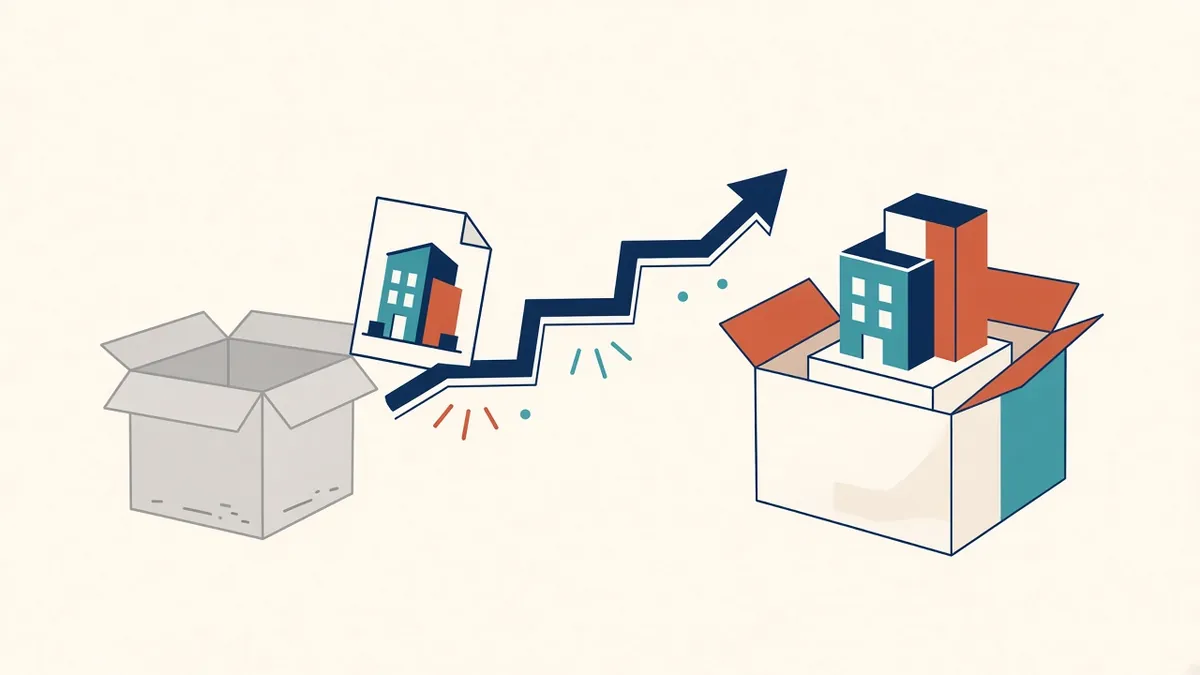
Upgrading Revit mid-project sounds simple until a linked model, a plug-in or a consultant isn't ready.
Autodesk releases a new Revit version each year. Upgrading brings new features and fixes, but it also brings compatibility challenges. Planning upgrades carefully avoids disruption to live projects.
Key compatibility facts
- Revit files can be opened in newer versions, which upgrades them
- Upgraded files can't be saved back to older versions
- Linked models generally need to be in the same version or older; older links are upgraded in memory when opened
- Families also upgrade and can't be saved back
Because upgrades are one-way, everyone working on a project needs the same version.
Agree with the team
Before upgrading a project, agree with consultants and partners. If one party upgrades early, others may be unable to open files. Record the agreed version in the BIM execution plan.
When to upgrade
- At the start of new projects, using the office's current version
- At natural breaks in live projects, such as between stages
- Avoid upgrading close to major deadlines
Some firms keep long projects on one version until completion to avoid risk.
Test first
Before upgrading a live project:
- Copy the model and open it in the new version
- Check views, schedules and sheets
- Test add-ins and scripts
- Check printing and exports
- Time the upgrade, as large models take a while
Families and templates
Upgrade the office family library and template in a controlled way. Keep the older versions available while some projects remain on older Revit.
Add-ins
Add-ins and Dynamo scripts may need updates for each version. Check with vendors and test before upgrading.
Central models
For workshared models, follow the proper process for upgrading central models, including making sure everyone has synced and relinquished elements first. Upgrading a central model incorrectly can cause problems.
Cloud models
Cloud models have their own upgrade process in Autodesk Construction Cloud. Plan it with the project administrator.
Communicate the change
Tell the team when the upgrade will happen, and make sure everyone has the new version installed and tested.
Keep records
- 01Key compatibility facts
- 02Agree with the team
- 03When to upgrade
- 04Test first
- 05Families and templates
- 06Add-ins
Plan for archives
Archived projects stay in the version they were last saved in. If you need to reopen an old project years later, you may need to upgrade through several versions. Keeping PDF and IFC copies of key deliverables alongside native files makes archives easier to use without needing old software. It also helps if a client or future consultant needs to view information without Revit.
Planned upgrades are smooth. Unplanned ones cause lost time and compatibility problems. A short checklist and clear communication make the difference.
If your team needs extra production capacity for work like this, take a look at our Architectural production services, or tell us about your project.
Related articles
Keeping Revit Models Healthy and Fast
Routine maintenance that keeps models fast, stable and reliable.
Read more →
Cloud Collaboration with Autodesk Construction Cloud
Working on shared Revit models across offices with cloud worksharing.
Read more →
Setting Up a Revit Project Template
What belongs in a template, and how to keep it useful as standards evolve.
Read more →