
Keynoting in Revit: Setup and Best Practice
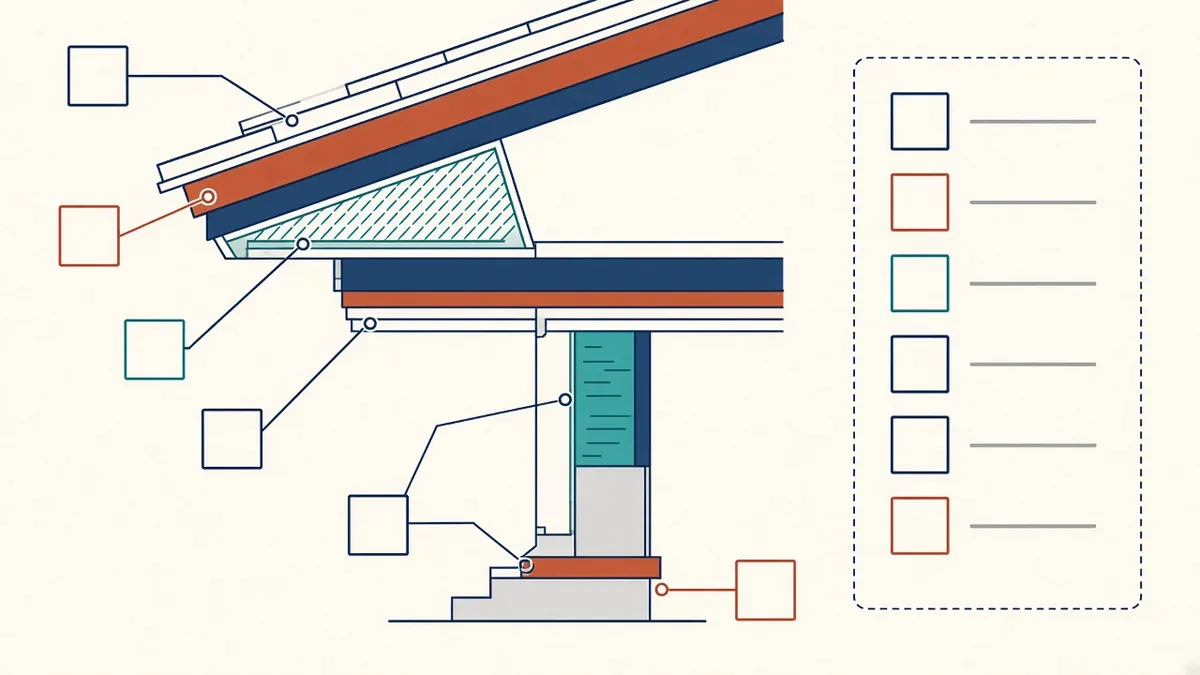
Keynotes can make a busy detail much cleaner, or turn it into a puzzle if the setup isn't right.
Keynoting replaces long text notes with short codes linked to a central list of descriptions. In Revit, keynotes keep wording consistent across a project and make it easier to align notes with specifications.
How Revit keynotes work
Revit reads keynotes from a text file, typically tab-delimited, containing codes, descriptions and parent groupings. Keynote tags can display the code, the description or both. Keynote legends list the keynotes used, either on the whole project or on each sheet.
Types of keynotes
- Element keynotes: read from the element's type
- Material keynotes: read from the material
- User keynotes: chosen manually for a specific tag
Element and material keynotes stay consistent automatically, while user keynotes offer flexibility.
Structuring the keynote file
Many firms organise keynotes by specification section, such as CSI MasterFormat in the US or NBS or Uniclass-based references in the UK. This links each note to the relevant specification. Keep descriptions short and consistent.
Maintaining the file
- Store the file in a controlled location
- Assign an owner for edits
- Keep a project copy if project-specific notes are needed
- Review the file when specifications change
Revit can reference keynote files by absolute or relative paths. Make sure paths work for everyone, including remote and outsourced team members.
Keynote legends
Advantages
- Consistent wording across all drawings
- Easier coordination with specifications
- Cleaner drawings with short tags
- Faster updates when descriptions change
Challenges
- The keynote file needs managing
- Readers must look up codes in legends
- Some consultants or clients prefer full text notes
Combining with text
Many firms use keynotes for most notes and text notes for unique, project-specific information. Agree the approach in the office standards.
Common problems
- Broken paths to keynote files
- Duplicate or outdated codes
- User keynotes used where element keynotes would be more reliable
- Legends not showing all codes used
Checking
Before issue, check that every keynote on each sheet appears in its legend and that descriptions are current.
Share keynotes with partners
If outsourced production teams or consultants work in your model, give them access to the keynote file and explain the structure. A shared file prevents notes being typed manually, which breaks the link to specifications.
- 01How Revit keynotes work
- 02Types of keynotes
- 03Structuring the keynote file
- 04Maintaining the file
- 05Keynote legends
- 06Advantages
Plan for regional differences
If the office works in several regions, consider separate keynote files aligned with each region's specification system, rather than one file that tries to serve everyone.
Keynoting takes some setup, but it pays off with consistent notes and a direct link between drawings and specifications.
If your team needs extra production capacity for work like this, take a look at our Architectural production services, or tell us about your project.
Related articles
How Drawings and Specifications Work Together
What goes on drawings, what goes in specs and how to stop them contradicting each other.
Read more →
Detail Components and Drafting Views in Revit
Building clear, reusable details with components and drafting views.
Read more →
Writing General Notes and Legends for Drawing Sets
Notes that help rather than contradict, and legends that read at a glance.
Read more →