
Cross-Referencing Drawings: Callouts, Tags and Coordination
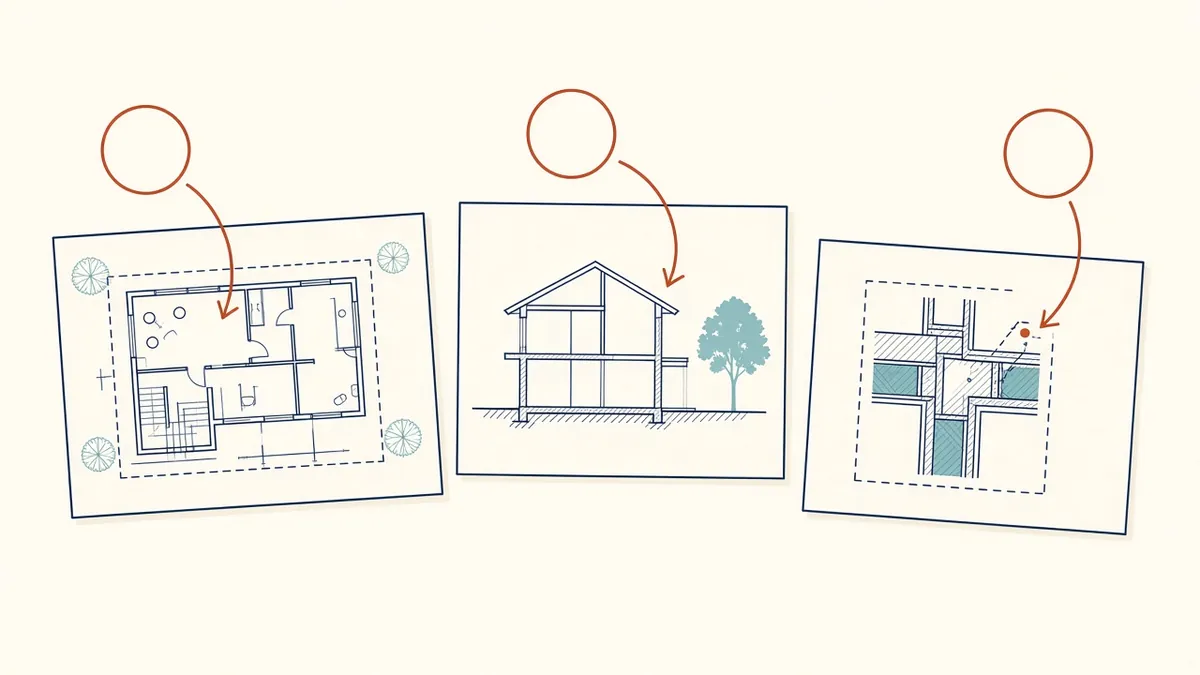
A callout that points to the wrong sheet is worse than no callout at all. It sends people confidently in the wrong direction.
A construction set is a network of references. Plans point to sections, sections point to wall sections, wall sections point to details. When a reference is wrong, the reader hits a dead end. Cross-referencing errors are one of the most common comments in plan review and one of the most common sources of RFIs.
Types of references
- Section marks
- Elevation marks
- Detail callouts
- Enlarged plan callouts
- Interior elevation marks
- Notes that refer to other sheets
- Schedules that reference types or details
Use live references
In Revit, section marks, callouts and elevation tags are linked to views. When a view is placed on a sheet, the reference updates automatically with the sheet and detail number. This removes most numbering errors, as long as views are placed correctly.
In CAD, sheet set managers and field-based callouts can do similar work. Manually typed references are the riskiest, because they don't update when sheets change.
Watch for drafted references
Some references are typed into notes, such as "see detail 5/A-501". These don't update automatically. Keep them to a minimum, and check them carefully before each issue.
Avoid orphans
- Orphan details: details on sheets that nothing references
- Orphan references: callouts pointing to views that don't exist or aren't placed on sheets
Both confuse readers. Orphan details may be outdated, and orphan references are dead ends.
Organise detail sheets logically
Group details by type or location, such as roof details, wall details and door details. Logical grouping helps readers find related information and makes referencing easier.
Checking references
A practical check:
- Print the set or use a PDF tool that supports hyperlinks
- Follow each callout from plans to its target
- Confirm the target shows what the callout implies
- Check that the target references back where helpful
Some PDF tools can create hyperlinks between callouts and sheets automatically, which makes the set easier to navigate and to check.
Consultant references
References to structural or MEP drawings should use current sheet numbers. Ask consultants to notify you when they renumber sheets.
At revision
When details are moved or renumbered, check every reference that pointed to them, including typed references in notes.
Make references readable
Callout symbols should be large enough to read when printed at reduced size, and consistent in style across the set. Clear references are only useful if readers can actually see them.
Train the team
Reliable cross-references make a set feel professional, and they make it much quicker for everyone to find the information they need.
If your team needs extra production capacity for work like this, take a look at our Architectural production services, or tell us about your project.
Related articles
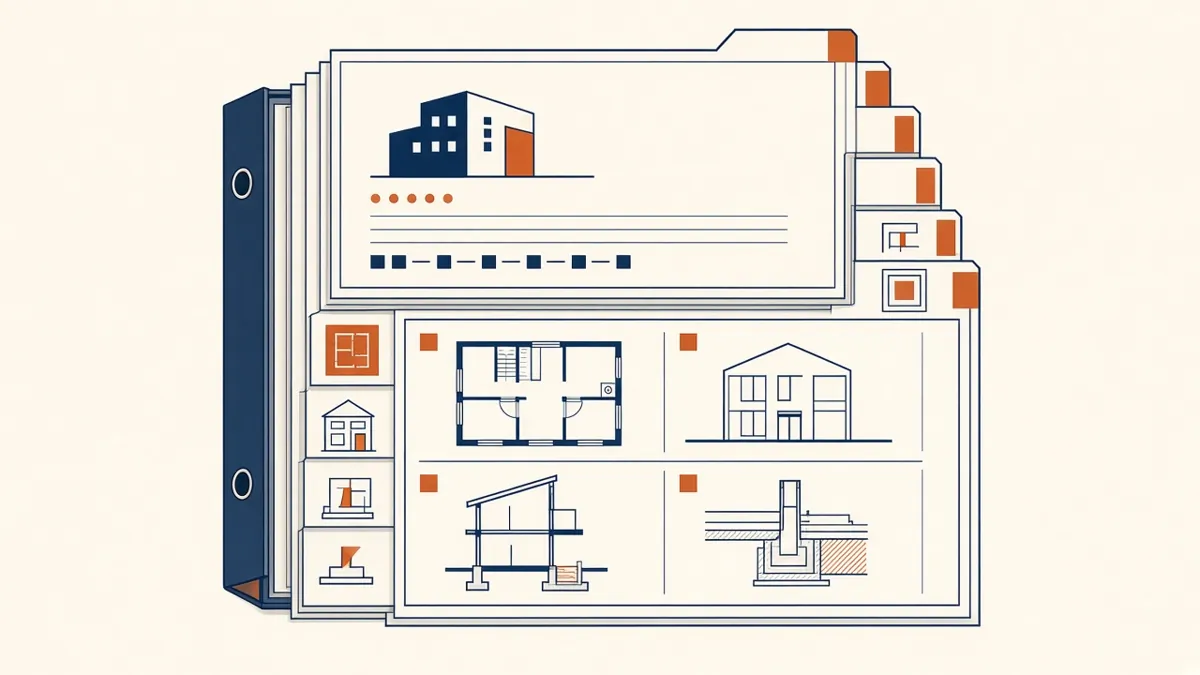
How to Structure a Construction Document Set
The order, content and logic of a well-built CD set, and why structure saves time on site.
Read more →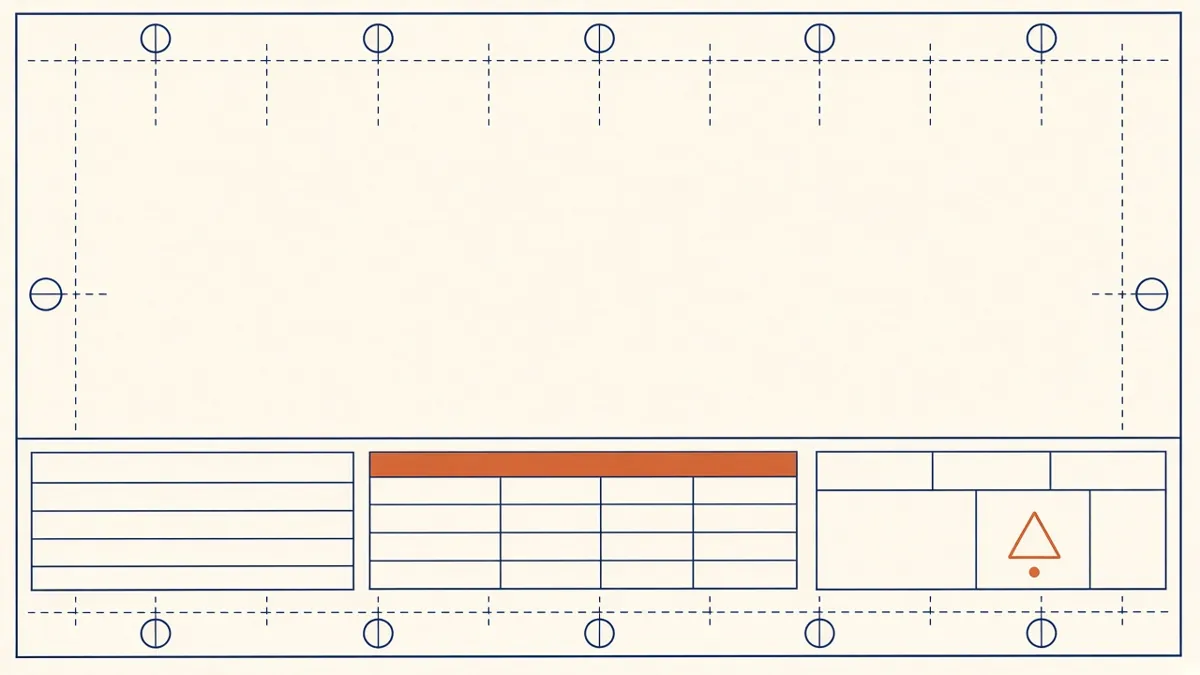
Drawing Sheet Standards: Numbering, Title Blocks and Naming
Sheet numbering, title blocks and naming conventions that keep large drawing sets readable.
Read more →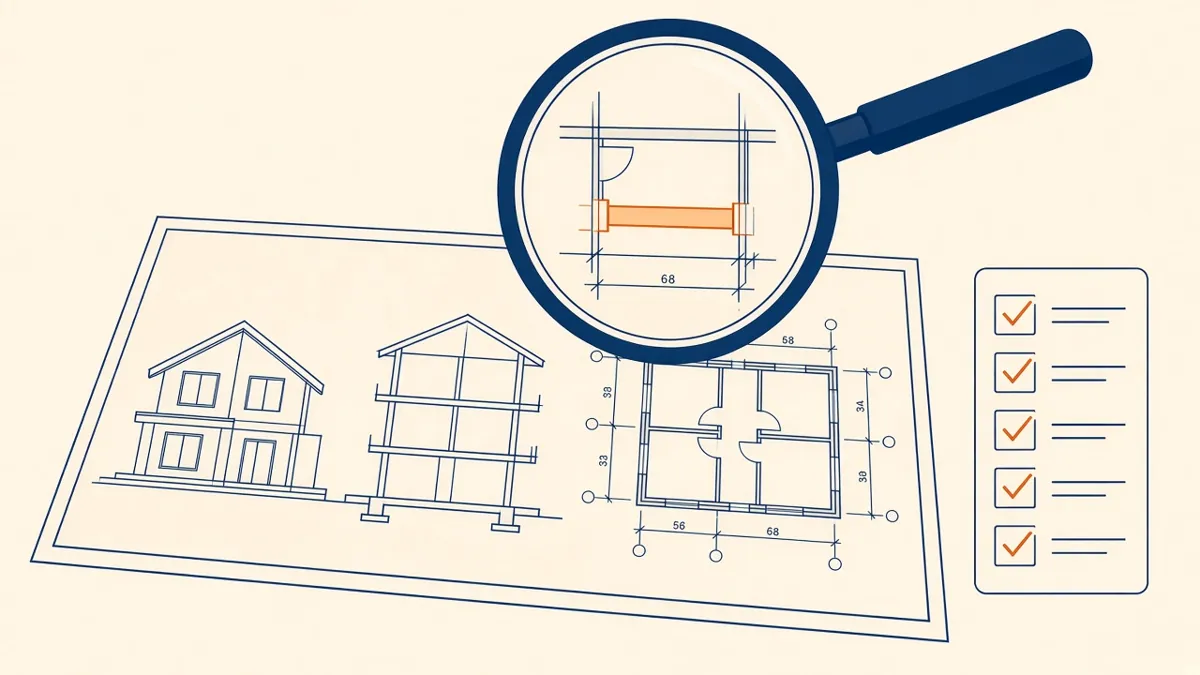
Quality Control for Outsourced Architectural Drawings
Checklists and review steps that catch errors before drawings reach your desk.
Read more →