
Federated Model Alignment Checks

Federated models only work if every discipline sits in the right place. Alignment checks confirm that they do.
A federated model combines models from different disciplines, such as Architectural, structural and MEP. Before coordination can start, the models must align. Misaligned models produce meaningless clash results and can hide real problems.
Why alignment fails
- Models using different coordinate systems
- Wrong shared coordinates acquired
- Different level datums
- Different units
- Models moved accidentally
- Export settings that don't carry coordinates
Agree setup first
At the start of the project, agree:
- Coordinate system and survey point
- Level datums and names
- Grid names and positions
- Units
- Exchange formats and settings
Record these in the BIM execution plan.
Check grids and levels
Grids and levels are the simplest alignment checks. In a federated model, grids from each discipline should overlay exactly, and levels should match.
Check key elements
Compare key elements, such as columns, cores and slab edges, between Architectural and structural models. They should align within agreed tolerances.
Check exports
When exporting to IFC or NWC, check that coordinate settings are correct. Export options can choose between internal, project and shared coordinates. Test exports before coordination starts.
Use a check model
Some teams create a simple model with grids, levels and a few reference objects. Each discipline links it to confirm alignment.
Check after updates
Models can move accidentally. Check alignment whenever new versions are received.
Units
Models in different units, such as metric and imperial, can cause scaling issues in some exports. Confirm units before federating.
Rotations
Report problems clearly
When models don't align, report the offset and which elements are affected, with screenshots. This helps the model author fix the setup quickly.
Record alignment checks
Record each check with the model versions and results, so alignment history is clear.
Simple alignment tests
Open the federated model and check a few known points, such as a grid intersection, a level and a corner of the building. If these line up across all models, alignment is probably correct. If they don't, stop and fix it before running clash detection.
- 01Why alignment fails
- 02Agree setup first
- 03Check grids and levels
- 04Check key elements
- 05Check exports
- 06Use a check model
Units and rotation
Many alignment problems come from mismatched units or a rotated true north. Check both when a model arrives looking far away or turned at an angle.
Confirming alignment before coordination makes clash detection meaningful and saves time for the whole team.
If your team needs extra production capacity for work like this, take a look at our Architectural production services, or tell us about your project.
Related articles
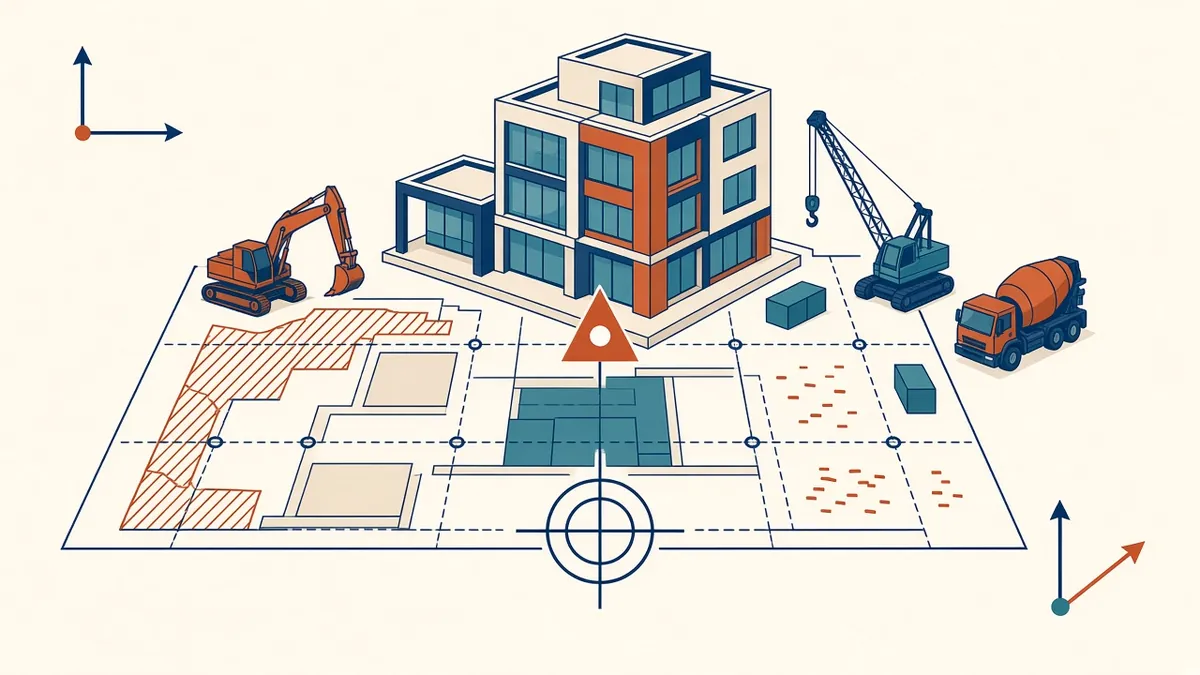
Model Coordinates, Survey Points and Base Points
Internal origin, project base point, survey point and shared coordinates.
Read more →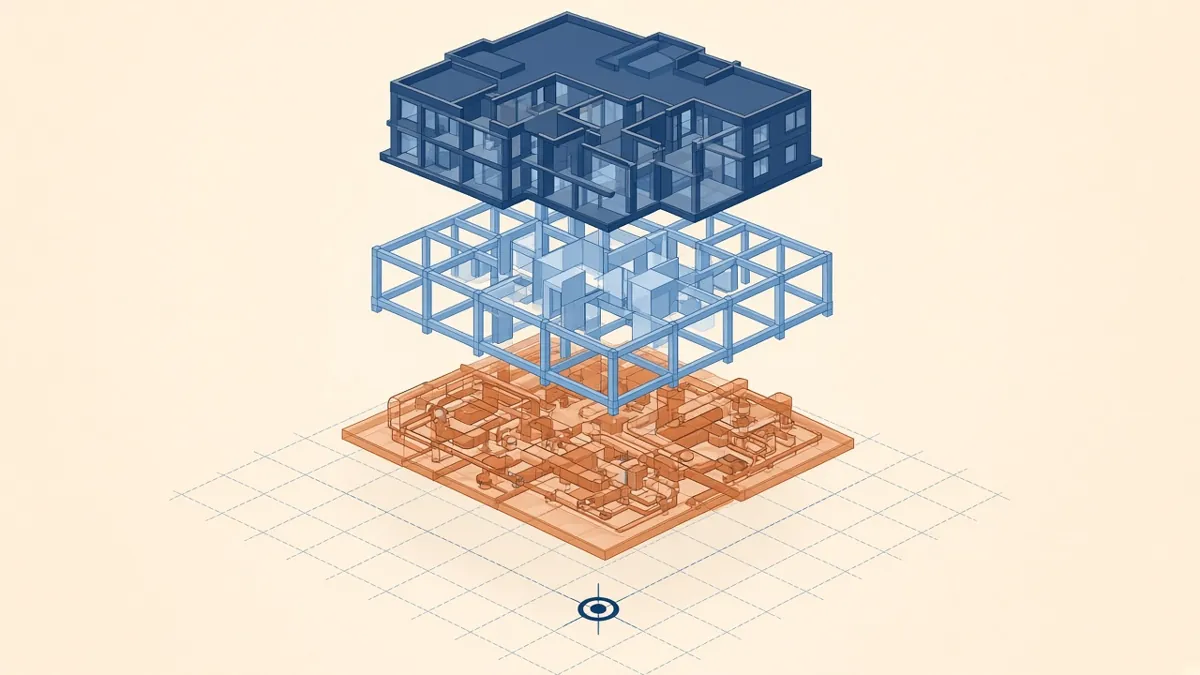
A Practical BIM Coordination Workflow for Design Teams
Setting up shared coordinates, model exchanges and coordination cycles that actually resolve issues.
Read more →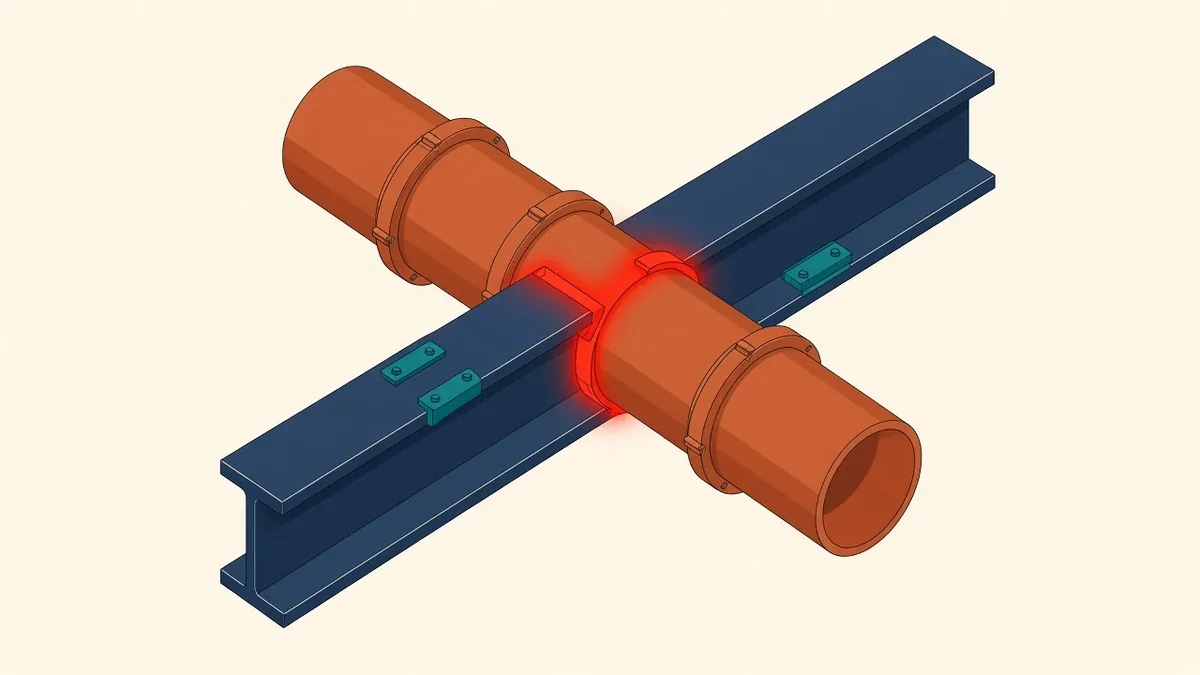
Clash Detection With Navisworks: A Practical Guide
Setting up useful clash tests and reports in Navisworks.
Read more →