
Revit Views and View Templates Explained
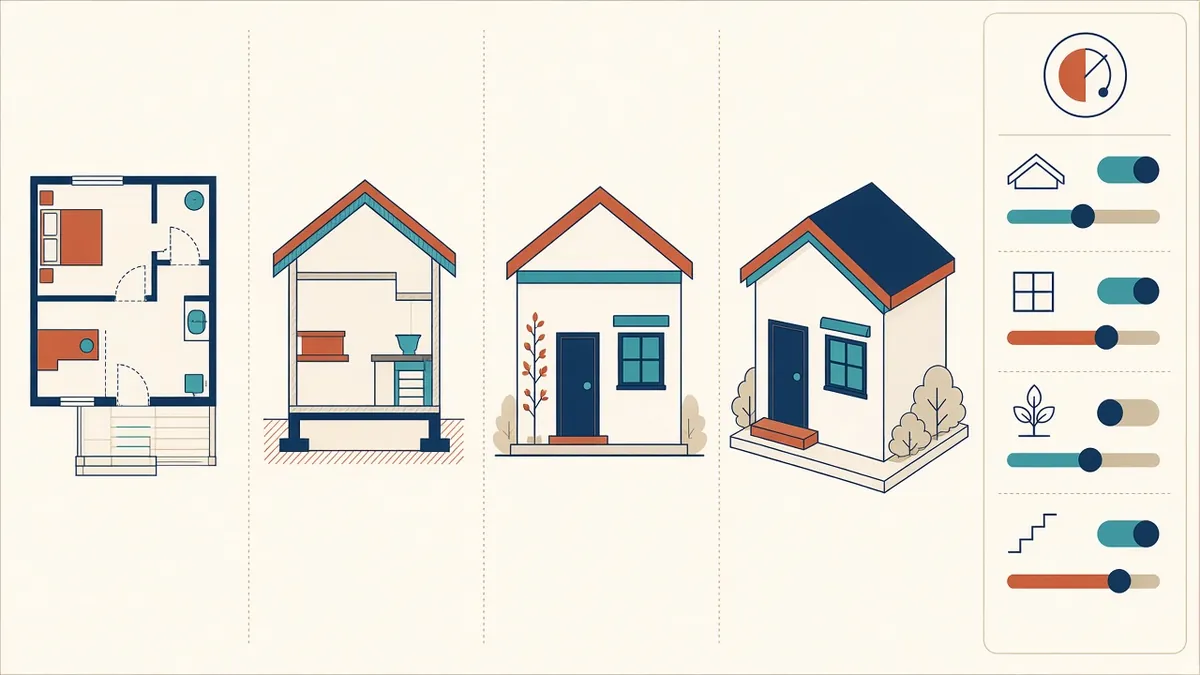
If your sheets look slightly different every time someone touches them, view templates are probably the missing piece.
In Revit, every drawing is a view of the model. Plans, sections, elevations, 3D views, schedules and legends are all views. Understanding how views work, and how to control them with view templates, is one of the most important skills for producing consistent drawings.
Types of views
- Plan views: floor plans, ceiling plans, structural plans and area plans
- Sections and elevations: cut or projected views of the model
- Callouts: enlarged views of part of another view
- Drafting views: 2D views not linked to model geometry
- 3D views: perspective or axonometric views
- Schedules and legends: tabular or graphic lists
What controls how a view looks
- Visibility and graphics overrides, by category and subcategory
- View range, for plans, setting the cut plane and depth
- Detail level, such as coarse, medium or fine
- Scale, which affects annotation and some graphics
- Filters, which change graphics based on element parameters
- Phase and phase filter settings
- Crop regions and annotation crops
What view templates do
A view template stores these settings and applies them to views. When a view is assigned a template, its settings follow the template. Change the template, and every view using it updates. This keeps drawings consistent across a project.
Setting up view templates
Create templates for each drawing purpose, such as:
- General arrangement plans
- Reflected ceiling plans
- Fire strategy plans
- Building sections
- Wall sections
- Details
- Presentation views
- Coordination views
Name them clearly so team members know which to use.
Working views versus documentation views
Many teams separate working views, used for modelling, from documentation views placed on sheets. Working views can be adjusted freely, while documentation views are controlled by templates. This prevents accidental changes to issued drawings.
Filters
Filters change graphics based on parameters, such as highlighting fire-rated walls or showing new and existing elements differently. They're powerful for creating specialist plans without duplicating work.
Common problems
- Views without templates, making graphics inconsistent
- Overrides applied directly to views rather than in templates
- Too many similar templates with small differences
- View ranges set incorrectly, hiding elements
Maintenance
Tips for teams
- Lock important settings in templates so they can't be changed per view
- Use the project browser to group views by type or status
- Duplicate views with detailing only when needed
- 01Types of views
- 02What controls how a view looks
- 03What view templates do
- 04Setting up view templates
- 05Working views versus documentation views
- 06Filters
Naming views
Give views clear names that describe their purpose and level, so they're easy to find and place. A naming convention in the template keeps the project browser tidy as the project grows.
Mastering views and view templates turns Revit from a modelling tool into a reliable documentation tool, with every sheet looking like it belongs to the same set.
If your team needs extra production capacity for work like this, take a look at our Architectural production services, or tell us about your project.
Related articles
Setting Up a Revit Project Template
What belongs in a template, and how to keep it useful as standards evolve.
Read more →
Line Weights and Object Styles in Revit
Setting up graphics so drawings print crisply and consistently.
Read more →
Revit Sheets, Title Blocks and Revisions
Title blocks, sheet parameters and revisions that update themselves.
Read more →