
Keeping Revit Models Healthy and Fast
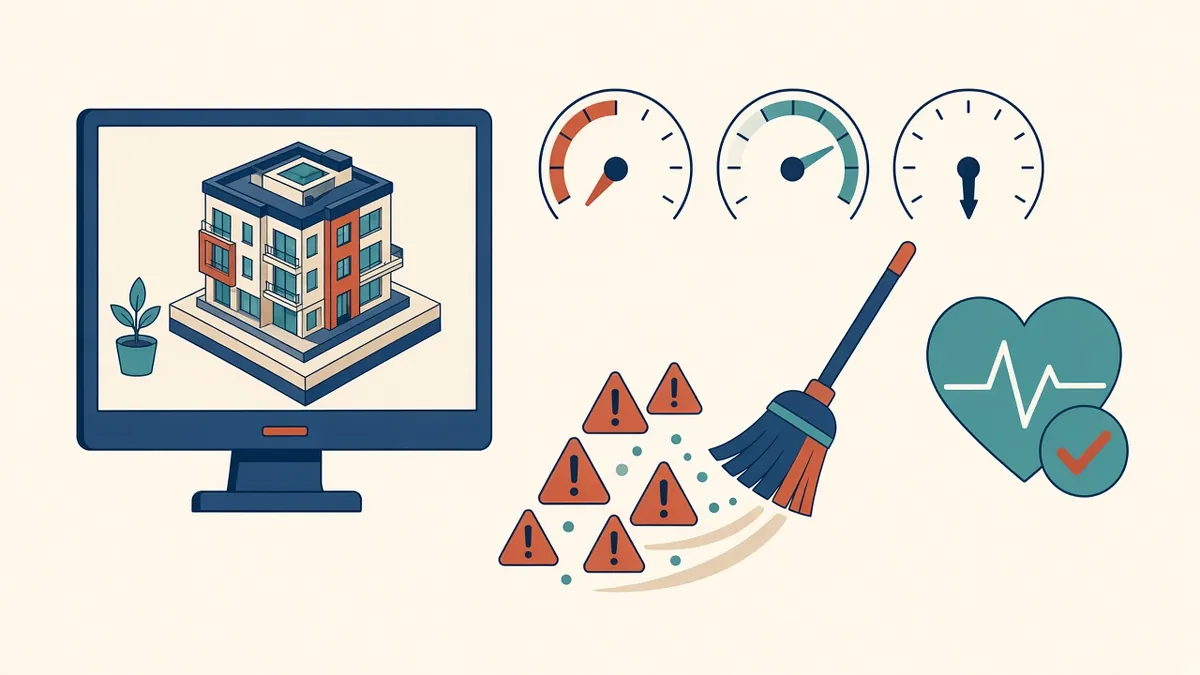
A slow, crash-prone Revit model costs time every single day. Most of the causes are preventable.
A slow, unstable Revit model wastes time for everyone who opens it. Most performance problems come from a handful of causes that are easy to manage with regular maintenance. A healthy model is faster, more reliable and less likely to corrupt.
Watch the warnings
Revit warnings flag problems such as duplicate elements, overlapping walls and rooms not enclosed. A few warnings are normal, but hundreds slow the model and hide real problems. Review warnings regularly and fix the most common types first, such as identical instances in the same place.
Control file size
Large files take longer to open, sync and save. Common causes include:
- Imported CAD files
- Unused families and types
- Too many views
- Heavy families with detailed geometry
- Raster images
- Groups used excessively
Purge unused items periodically, but be careful not to purge families the team plans to use later.
Link CAD files, don't import them
Imported CAD files bring layers, line patterns and text styles into the model, and they can be difficult to remove. Link them instead, and remove links that are no longer needed.
Manage families
Heavy families, such as manufacturer content with detailed geometry, can slow models dramatically. Simplify geometry, use detail levels and keep the family library under control.
Views and sheets
Unused views add weight and clutter. Delete working views that are no longer needed, and keep documentation views organised. Views with complex filters or large 3D crops can be slow to open.
Worksets
In workshared models, close worksets not needed for the task. Opening only what's needed improves performance. Keep links and heavy content on dedicated worksets.
Groups and design options
Groups are useful for repeated elements, but nested or very large groups can cause problems. Resolve design options before documentation.
Regular maintenance routine
- Weekly: review warnings, check links, remove unused views
- At milestones: purge, audit and compact the central model
- Before sharing: check coordinates, links and file size
Opening with Audit and saving with Compact can help clean the file, particularly for central models, but follow your office procedure for central files.
Hardware and network
Performance also depends on hardware, network speed and how the model is hosted. Cloud worksharing performance depends on internet connections.
Track health over time
- 01Watch the warnings
- 02Control file size
- 03Link CAD files, don't import them
- 04Manage families
- 05Views and sheets
- 06Worksets
Common causes of corruption
- Models stored on unstable network locations
- Interrupted saves or syncs
- Very old models upgraded many times without maintenance
Regular backups and careful worksharing practices reduce the risk.
A healthy model makes everyone more productive. A few minutes of maintenance each week saves hours of frustration later.
If your team needs extra production capacity for work like this, take a look at our Architectural production services, or tell us about your project.
Related articles
Model Accuracy Checks for Revit and BIM Projects
Practical checks that keep a BIM model accurate, healthy and trustworthy.
Read more →
Revit Worksharing Basics: Central Models, Worksets and Syncing
How central models, worksets and syncing work, and the habits that keep shared models stable.
Read more →
Revit Family Best Practices for Clean, Reliable Models
Building families that flex correctly, schedule cleanly and keep models light.
Read more →