
Detail Components and Drafting Views in Revit
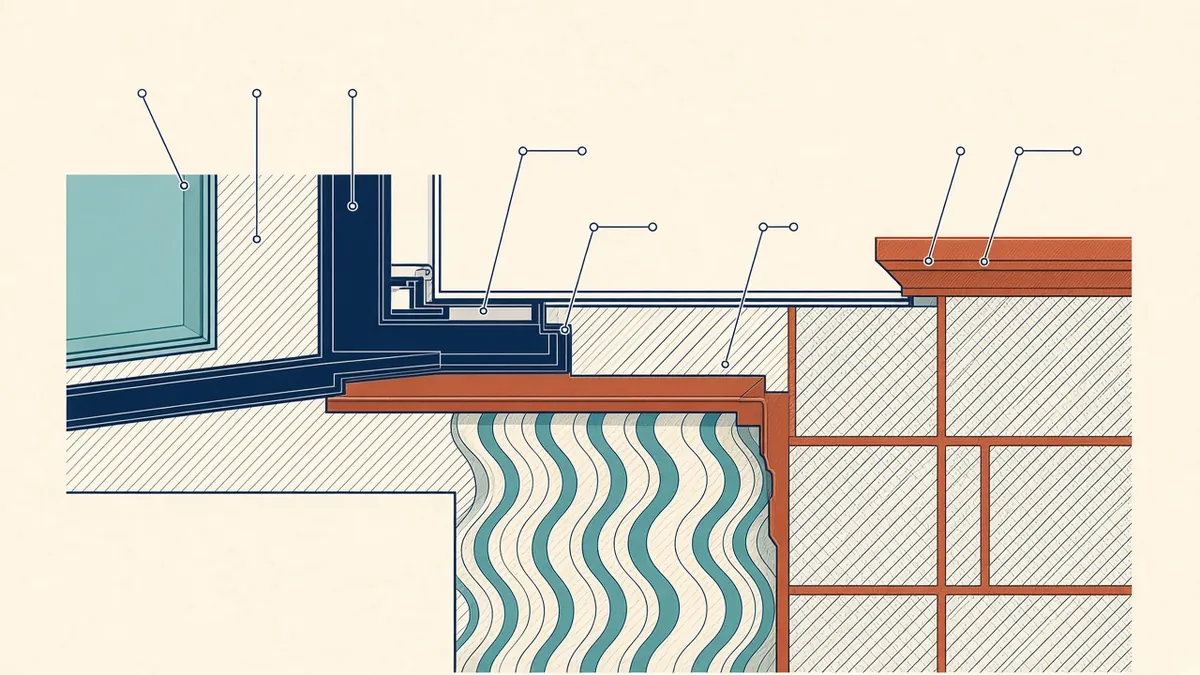
Not everything needs to be modelled in 3D. Detail components and drafting views are where 2D still earns its place.
Even in a BIM workflow, many construction details are drawn in 2D. Revit offers tools for detailing on top of model views or in standalone drafting views. Using them well produces clean details and a reusable library.
Detail callouts on model views
A detail callout from a section creates a large-scale view of the model. Model geometry provides the base, and 2D detail components, lines and annotation add the information needed. When the model changes, the base geometry updates.
Drafting views
Drafting views are 2D views not linked to the model. They're useful for typical details that don't depend on specific model geometry, such as standard junction details. Drafting views can be referenced from model views using callouts with reference views.
Detail components
Detail components are 2D families, such as studs, blocking, insulation, flashings and fixings. They behave consistently, can be tagged and keynoted, and can be scheduled. Using components rather than loose lines makes details more consistent and easier to edit.
Repeating details
Repeating detail components place a component repeatedly along a line, such as brick coursing or blocking. They save time and keep spacing accurate.
Filled regions and patterns
Filled regions represent materials in section, such as concrete or insulation. Use consistent patterns that match office standards and legends.
Building a detail library
- Store typical details in a library project or drafting views
- Name details clearly by type and condition
- Check details for accuracy and code compliance before adding them
- Review them periodically, as products and standards change
Model or draft?
Model what's needed for coordination and quantities. Draft what's only needed for construction information at large scale. Over-modelling small parts, such as fixings, slows models with little benefit.
Annotation
Referencing
Make sure every detail is referenced from plans, sections or elevations, and that references update correctly when details move.
Common problems
- Exploded CAD details with inconsistent line weights
- Drafting views referenced incorrectly
- Details copied between projects without checking
- Loose lines instead of components
Coordinate with other details
Check that details agree with wall sections, schedules and specifications.
- 01Detail callouts on model views
- 02Drafting views
- 03Detail components
- 04Repeating details
- 05Filled regions and patterns
- 06Building a detail library
Train the team on components
Short training on using detail components and repeating details pays off quickly, because consistent details are faster to check and edit.
Revit's detailing tools work well when used consistently. A tidy, checked library of components and details makes every project faster and clearer.
If your team needs extra production capacity for work like this, take a look at our Architectural production services, or tell us about your project.
Related articles
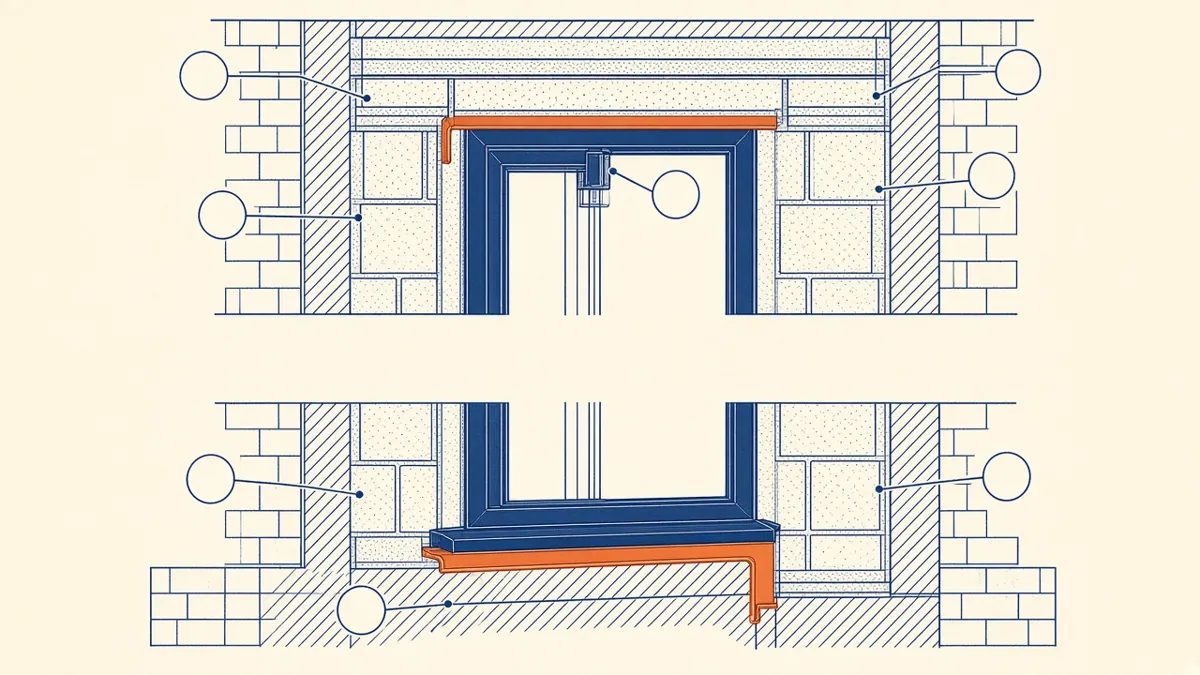
Architectural Detailing Best Practices for Construction Documents
How to draw details that contractors can build from, without ambiguity.
Read more →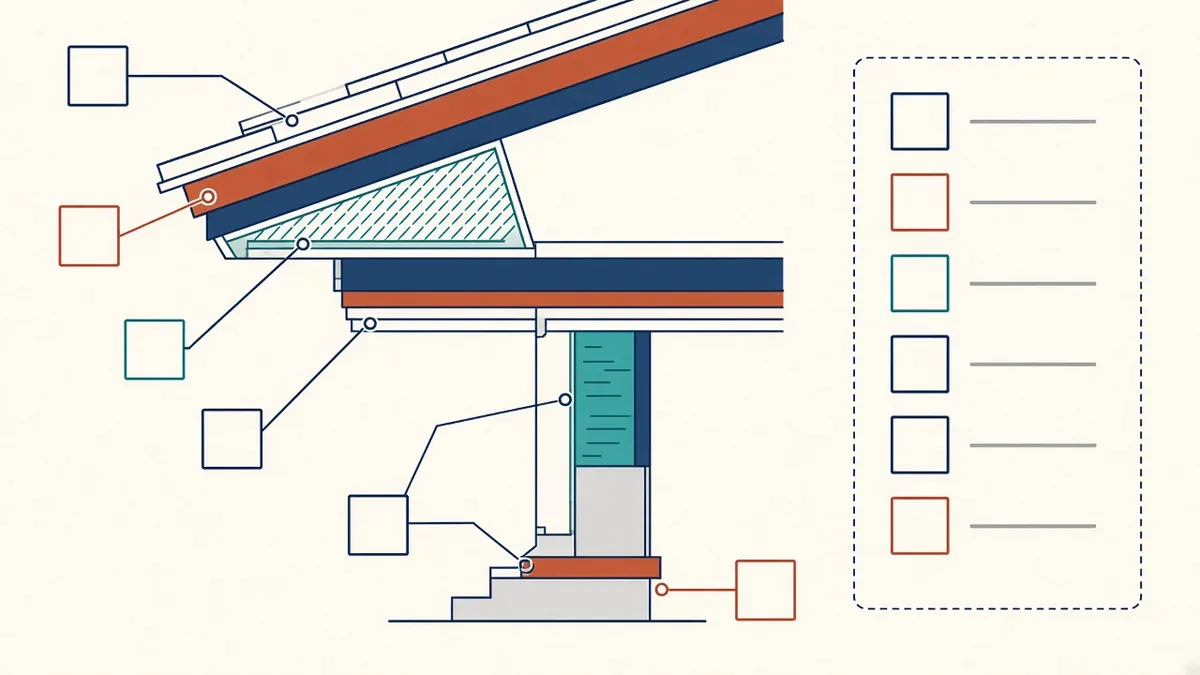
Keynoting in Revit: Setup and Best Practice
Consistent, specification-linked notes through keynotes and legends.
Read more →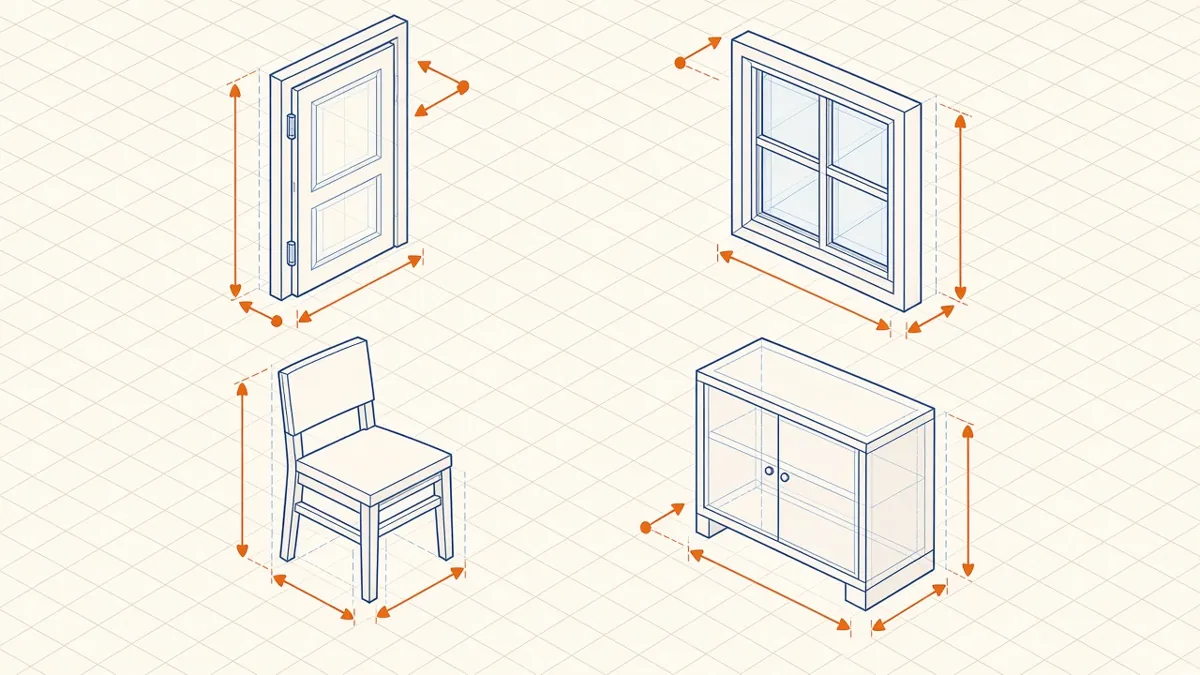
Revit Family Best Practices for Clean, Reliable Models
Building families that flex correctly, schedule cleanly and keep models light.
Read more →