Line Weights and Object Styles in Revit
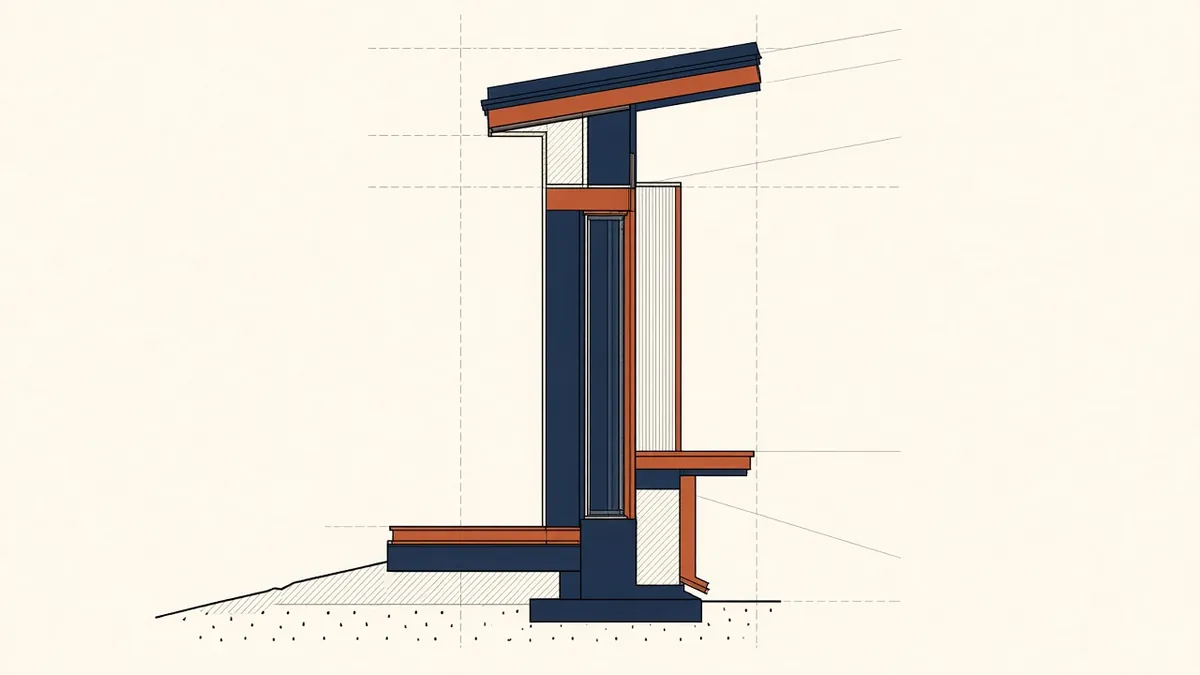
A drawing that's all one line weight is hard to read. Revit's object styles are how you fix it once, for every view.
Clear drawings depend on line weights. Heavy lines for cut elements, medium for edges and light for detail make drawings readable at a glance. In Revit, line weights are controlled through a few connected settings, and getting them right in the template pays off on every sheet.
Line weights by scale
Revit's line weight settings define pen thicknesses for each line weight number at each scale. Model line weights vary with scale, so a weight 5 line can be thicker at 1:50 than at 1:200. Annotation line weights don't vary with scale. Set these to suit your printers and office standards.
Object styles
Object styles assign line weights, colours and patterns to each category and subcategory, separately for projection and cut. For example, walls might have a heavy cut weight and a lighter projection weight. Object styles are the default graphics for the whole project.
Line patterns and line styles
Line patterns define dashes and dots. Line styles combine weight, colour and pattern for detail lines. Keep the list of line styles short and clearly named, so people use the right one.
Visibility and graphics overrides
Overrides in individual views or view templates change graphics from the object style defaults. Use them sparingly, and put them in view templates rather than individual views where possible.
Filters
Filters apply graphics based on parameters, such as fire-rated walls drawn with a specific pattern. They're powerful for specialist drawings and keep graphics data-driven.
Detail level
Families can show different geometry at coarse, medium and fine detail. Combined with line weights, this keeps small-scale drawings clean and large-scale drawings detailed.
Printing
Print settings affect the final result. Check that line weights print as expected, and consider whether to print in black, greyscale or colour. Test print sample sheets when setting up a template.
Common problems
- Too many line styles, used inconsistently
- Overrides applied view by view
- Imported CAD files bringing in unwanted line styles
- Families with hard-coded line weights or colours
- Everything printing at a similar weight, making drawings flat
Practical approach
- Set line weights to suit printers and standards
- Configure object styles for key categories
- Build view templates for each drawing type
- Create a small set of line styles
- Test print and adjust
Consistency with consultants
- 01Line weights by scale
- 02Object styles
- 03Line patterns and line styles
- 04Visibility and graphics overrides
- 05Filters
- 06Detail level
Review with real prints
Screens don't show line weights accurately. Print sample sheets at full size whenever graphics settings change, and review them with experienced team members. It's the most reliable way to judge whether drawings read well.
Good graphics standards make drawings easier to read and more professional. In Revit, a well-set template does most of the work automatically.
If your team needs extra production capacity for work like this, take a look at our Architectural production services, or tell us about your project.
Related articles
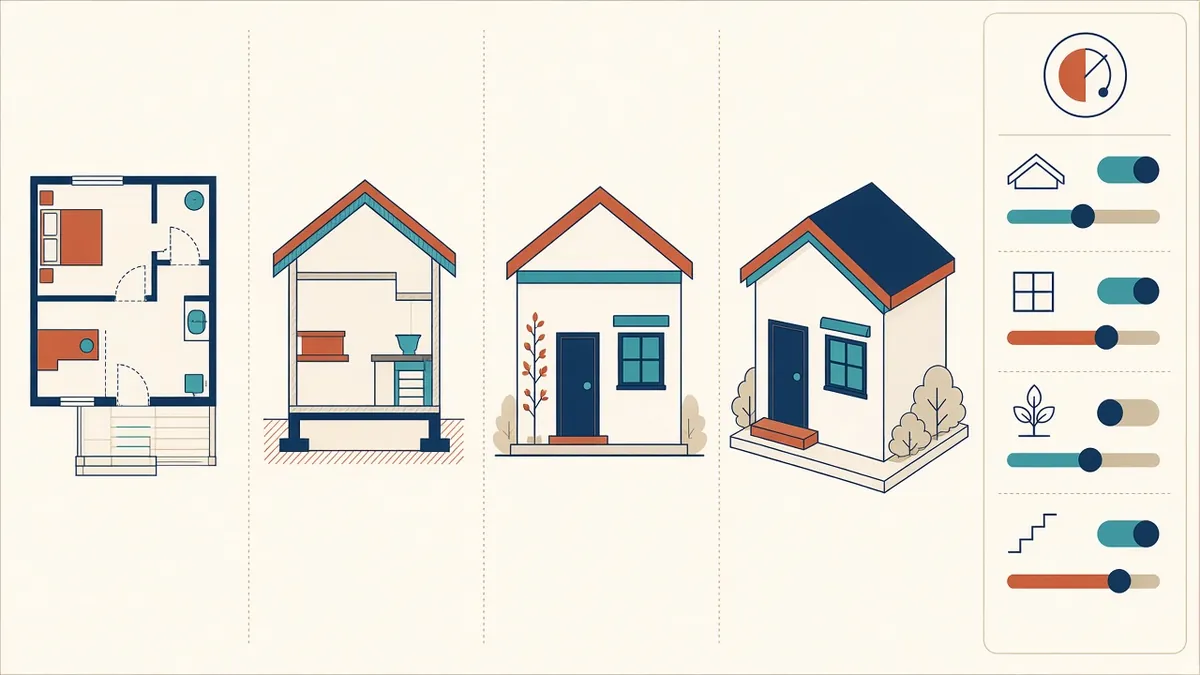
Revit Views and View Templates Explained
Controlling what every view shows, consistently, with view templates.
Read more →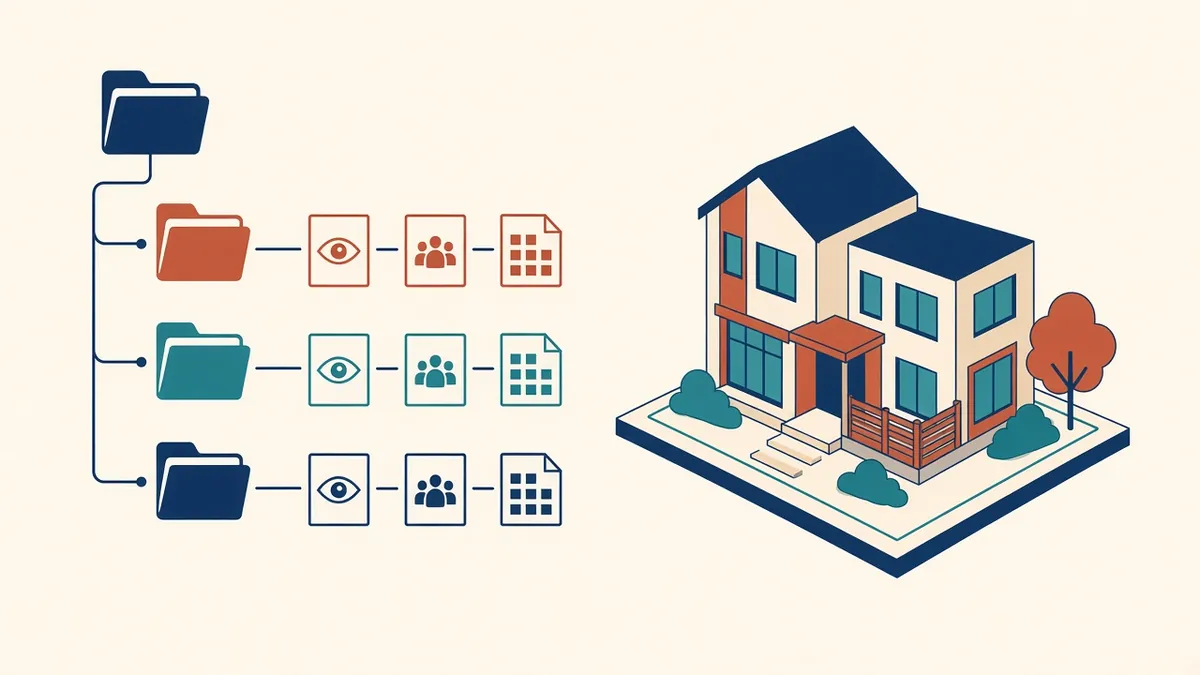
Setting Up a Revit Project Template
What belongs in a template, and how to keep it useful as standards evolve.
Read more →
Drawing Sheet Standards: Numbering, Title Blocks and Naming
Sheet numbering, title blocks and naming conventions that keep large drawing sets readable.
Read more →